> ## Documentation Index
> Fetch the complete documentation index at: https://docs.saasybill.com/llms.txt
> Use this file to discover all available pages before exploring further.
# Customers
> How to find, manage, and act on customer records in Saasybill
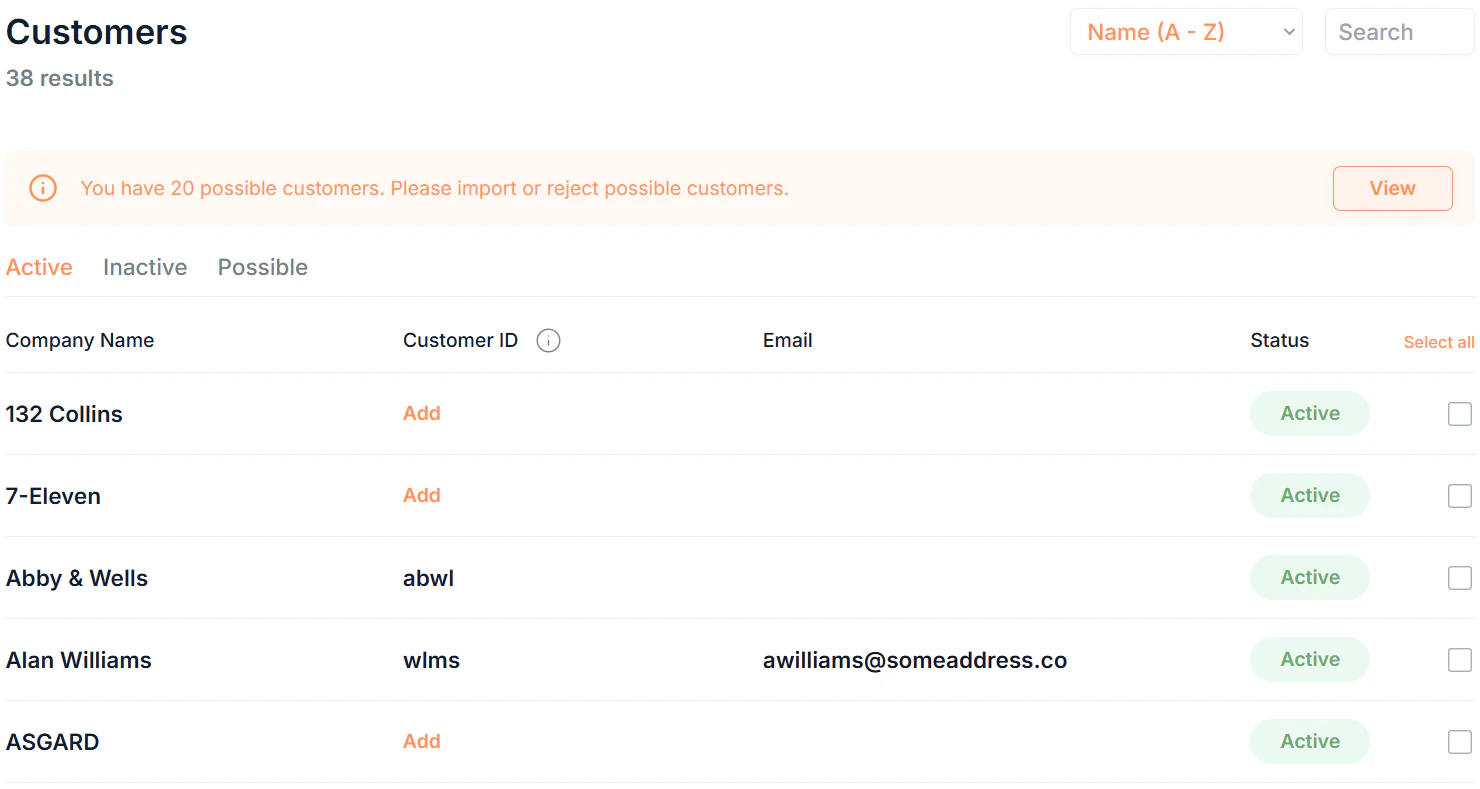
The Customers page is your central view of all customer records in Saasybill. From here you can find any customer, review their status, and navigate directly to their subscriptions.
 ***
## How customers get into Saasybill
Saasybill does not have its own customer creation form. Customers come from Xero.
When you create a new contact in Xero, it automatically syncs across to Saasybill and appears in the Customers list. This keeps your customer data in one place.
To add a new customer to Saasybill, create the contact in Xero as you normally would. It will appear automatically.
If you believe a customer should be in Saasybill when it's not, ensure it's not in the **Possible Customers** list and **not** a supplier in Xero. Then, search the customer in the Saasybill customers list and click Click here to sync manually.
***
## The customer list
Click Customers in the sidebar to see all customers in your organisation.open the list. Use the tabs at the top to filter by status, and the sort and search tools to find specific customers.
### Tabs
Filter the list by status using the tabs at the top:
| Tab | What it shows |
| ------------ | ----------------------------------- |
| **Active** | All active customers |
| **Inactive** | All inactive customers |
| **Possible** | Xero contacts that may be customers |
Rejected customers are shown at the bottom of the list in the **Possible Customers** tab.
### Filtering and searching
* **Search:** free text search across all customer fields
* **Sort:** order by Name or Date Created
### Customer statuses
| Status | What it means |
| ---------------------------------------------- | --------------------------------------------------------------------------------------------------- |
| Active | Customers with active or past subscriptions. Available for new subscriptions. |
| Inactive | Customers that have been archived in Xero. Unavailable for new subscriptions. |
| Possible | Xero contacts that may be customers and are pending your review. Unavailable for new subscriptions. |
| Rejected | Contacts you have declined to import as customers. |
***
## Possible customers
When Saasybill syncs with Xero, it cannot always determine automatically whether a contact is a customer. These contacts go in the **Possible** tab for you to review.
If there are any contacts awaiting review, a red indicator appears on the **Customers** item in the sidebar.
For each possible customer you can:
* **Import:** moves the contact to the Active customers list, where it can be added to new subscriptions
* **Reject:** moves the contact to the Rejected list
Rejected contacts remain visible at the bottom of the Possible Customers list and can be imported at any time.
***
## How customers get into Saasybill
Saasybill does not have its own customer creation form. Customers come from Xero.
When you create a new contact in Xero, it automatically syncs across to Saasybill and appears in the Customers list. This keeps your customer data in one place.
To add a new customer to Saasybill, create the contact in Xero as you normally would. It will appear automatically.
If you believe a customer should be in Saasybill when it's not, ensure it's not in the **Possible Customers** list and **not** a supplier in Xero. Then, search the customer in the Saasybill customers list and click Click here to sync manually.
***
## The customer list
Click Customers in the sidebar to see all customers in your organisation.open the list. Use the tabs at the top to filter by status, and the sort and search tools to find specific customers.
### Tabs
Filter the list by status using the tabs at the top:
| Tab | What it shows |
| ------------ | ----------------------------------- |
| **Active** | All active customers |
| **Inactive** | All inactive customers |
| **Possible** | Xero contacts that may be customers |
Rejected customers are shown at the bottom of the list in the **Possible Customers** tab.
### Filtering and searching
* **Search:** free text search across all customer fields
* **Sort:** order by Name or Date Created
### Customer statuses
| Status | What it means |
| ---------------------------------------------- | --------------------------------------------------------------------------------------------------- |
| Active | Customers with active or past subscriptions. Available for new subscriptions. |
| Inactive | Customers that have been archived in Xero. Unavailable for new subscriptions. |
| Possible | Xero contacts that may be customers and are pending your review. Unavailable for new subscriptions. |
| Rejected | Contacts you have declined to import as customers. |
***
## Possible customers
When Saasybill syncs with Xero, it cannot always determine automatically whether a contact is a customer. These contacts go in the **Possible** tab for you to review.
If there are any contacts awaiting review, a red indicator appears on the **Customers** item in the sidebar.
For each possible customer you can:
* **Import:** moves the contact to the Active customers list, where it can be added to new subscriptions
* **Reject:** moves the contact to the Rejected list
Rejected contacts remain visible at the bottom of the Possible Customers list and can be imported at any time.
 ***
## Customer details
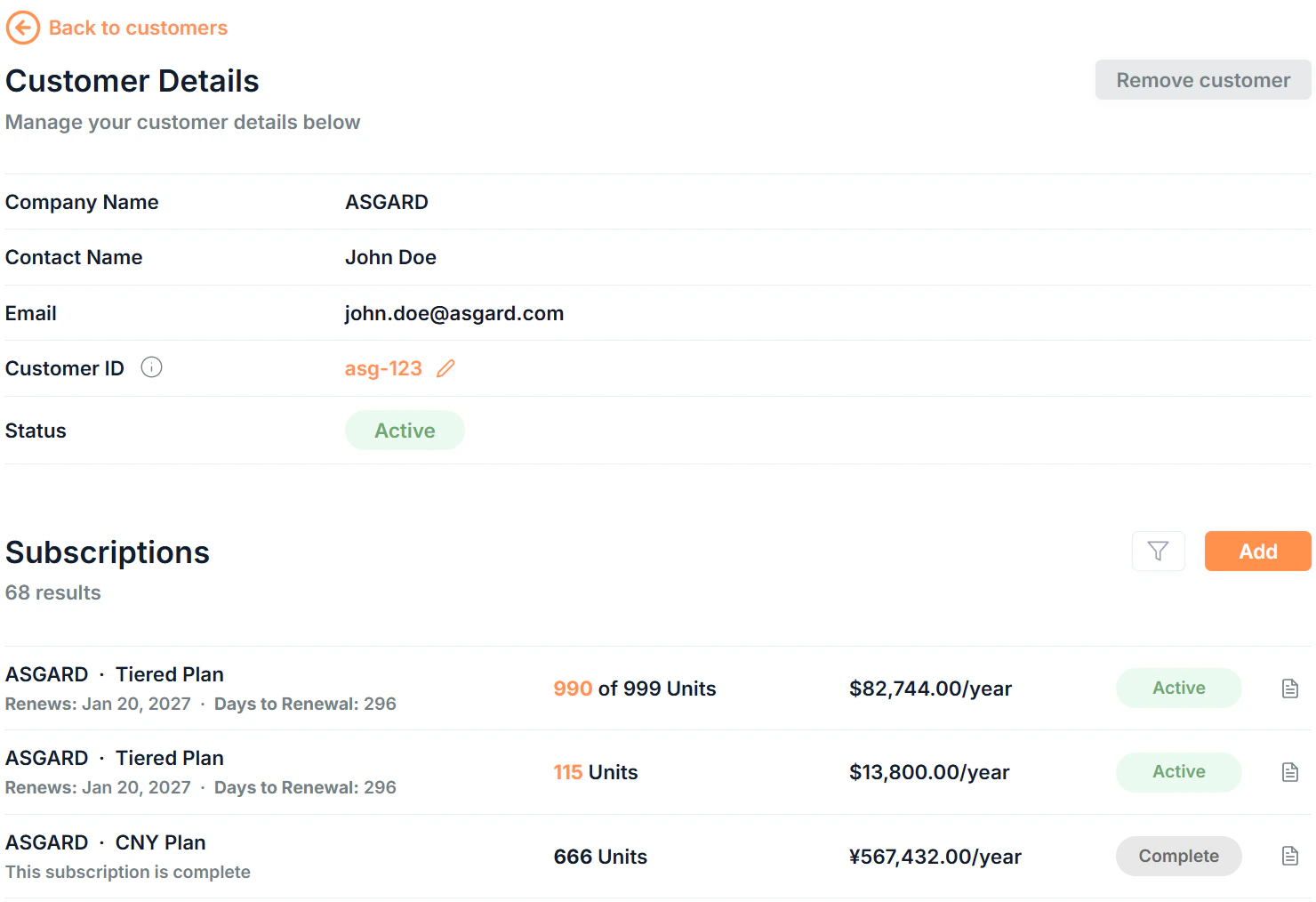
Click any **Active** or **Inactive** customer's **Name** to open its details page. The details page is split into two sections.
***
## Customer details
Click any **Active** or **Inactive** customer's **Name** to open its details page. The details page is split into two sections.
 ### Customer details
| Field | Description |
| ---------------- | --------------------------------------------------------------------------------------------------------------- |
| **Company Name** | The customer's company name, synced from Xero |
| **Contact Name** | The primary contact person's name, synced from Xero |
| **Email** | The contact email address, synced from Xero |
| **Customer ID** | Optional An internal identifier for this customer, can only be added in Saasybill |
| **Status** | The customer's current status in Saasybill |
### Subscriptions
This section shows all subscriptions for this customer. This subscriptions list has all the same functionality as the main [Subscriptions](/billing-workspace/subscriptions-workspace) page, including updating subscriptions and viewing subscription history. Click any subscription's **Name** to go to the associated details page.
Click Add to create a new subscription for the current customer
***
## Editing a customer
To edit most customer details, update them in Xero and the updates will automatically sync with Saasybill.
The Customer ID is synced with Xero, but can only be added and updated in Saasybill. Click **Add** to add a customer ID.
***
## Bulk actions
Select multiple customers in the list by clicking the of each customer to:
* **Bulk Remove:** move multiple customers to the Rejected list (requires confirmation)
Customers with active subscriptions cannot be removed.
***
## Removing a customer
Click Remove customer from the details page to move a customer to the Rejected list. A confirmation dialog appears before the action completes.
Customers with active subscriptions cannot be removed.
### Customer details
| Field | Description |
| ---------------- | --------------------------------------------------------------------------------------------------------------- |
| **Company Name** | The customer's company name, synced from Xero |
| **Contact Name** | The primary contact person's name, synced from Xero |
| **Email** | The contact email address, synced from Xero |
| **Customer ID** | Optional An internal identifier for this customer, can only be added in Saasybill |
| **Status** | The customer's current status in Saasybill |
### Subscriptions
This section shows all subscriptions for this customer. This subscriptions list has all the same functionality as the main [Subscriptions](/billing-workspace/subscriptions-workspace) page, including updating subscriptions and viewing subscription history. Click any subscription's **Name** to go to the associated details page.
Click Add to create a new subscription for the current customer
***
## Editing a customer
To edit most customer details, update them in Xero and the updates will automatically sync with Saasybill.
The Customer ID is synced with Xero, but can only be added and updated in Saasybill. Click **Add** to add a customer ID.
***
## Bulk actions
Select multiple customers in the list by clicking the of each customer to:
* **Bulk Remove:** move multiple customers to the Rejected list (requires confirmation)
Customers with active subscriptions cannot be removed.
***
## Removing a customer
Click Remove customer from the details page to move a customer to the Rejected list. A confirmation dialog appears before the action completes.
Customers with active subscriptions cannot be removed.