> ## Documentation Index
> Fetch the complete documentation index at: https://docs.saasybill.com/llms.txt
> Use this file to discover all available pages before exploring further.
# Invoices
> How to view, filter, and manage invoices in the Billing Workspace
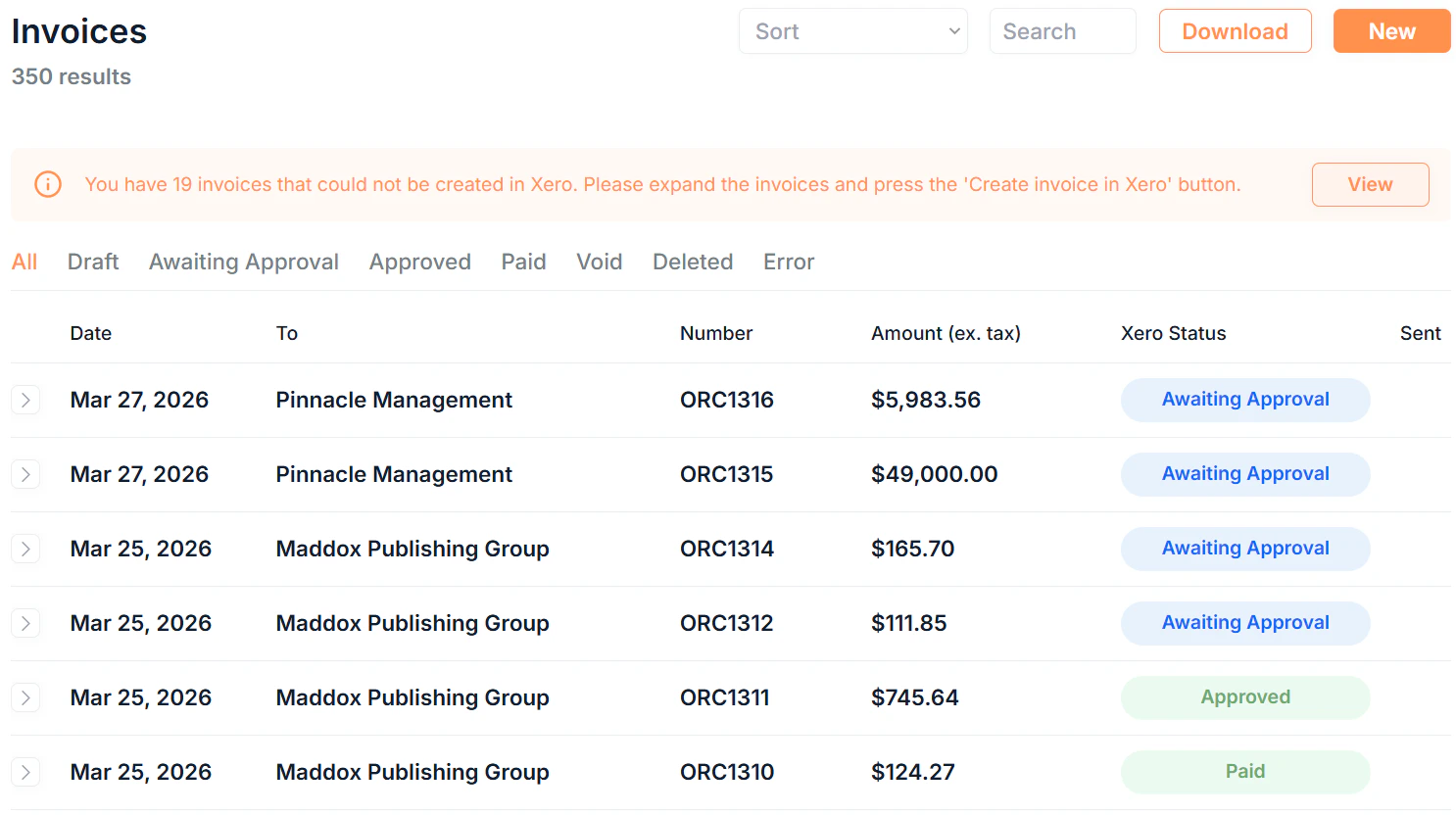
The Invoices page gives you a full view of every invoice generated across all your subscriptions. Invoices are created automatically at renewal or when you update a subscription. This page is where you monitor them and act on any that need attention.
 ***
## The invoices list
Click Invoices in the sidebar to see all invoices in your organisation.
### Tabs
Filter the list by status using the tabs at the top:
| Tab | What it shows |
| ------------------------------------------------------- | ---------------------------------------------------------- |
| All | Every invoice regardless of status |
| Draft | Invoices created but not yet approved in Xero |
| Awaiting Approval | Invoices ready to be approved in Xero |
| Approved | Approved invoices awaiting payment |
| Paid | Fully paid invoices |
| Void | Invoices that have been voided in Xero |
| Deleted | Invoices that have been deleted |
| Error | Invoices with a creation or sync error that need attention |
### Filtering and searching
* **Search:** free text search across invoice fields
* **Sort:** order by date or other fields
* **Download:** export all line items in your organisation as a CSV file
### What each row shows
Each invoice row displays:
| Column | Description |
| -------------------- | ------------------------------------------------- |
| **Date** | The date the invoice was generated |
| **To** | The customer the invoice is addressed to |
| **Number** | The Xero invoice reference number |
| **Amount (ex. tax)** | The invoice total excluding tax |
| **Xero Status** | The current status in Xero |
| **Sent** | Whether the invoice has been sent to the customer |
Click the on any invoice to see the line items and actions available for that invoice without leaving the list.
***
## Attention needed
When one or more invoices have errors or require action, an **Attention Needed** banner appears at the top of the [Invoices](https://app.saasybill.com/login?fw=invoices) page. Click View to navigate to the affected invoices.
Individual invoice rows can also surface alerts and show more information:
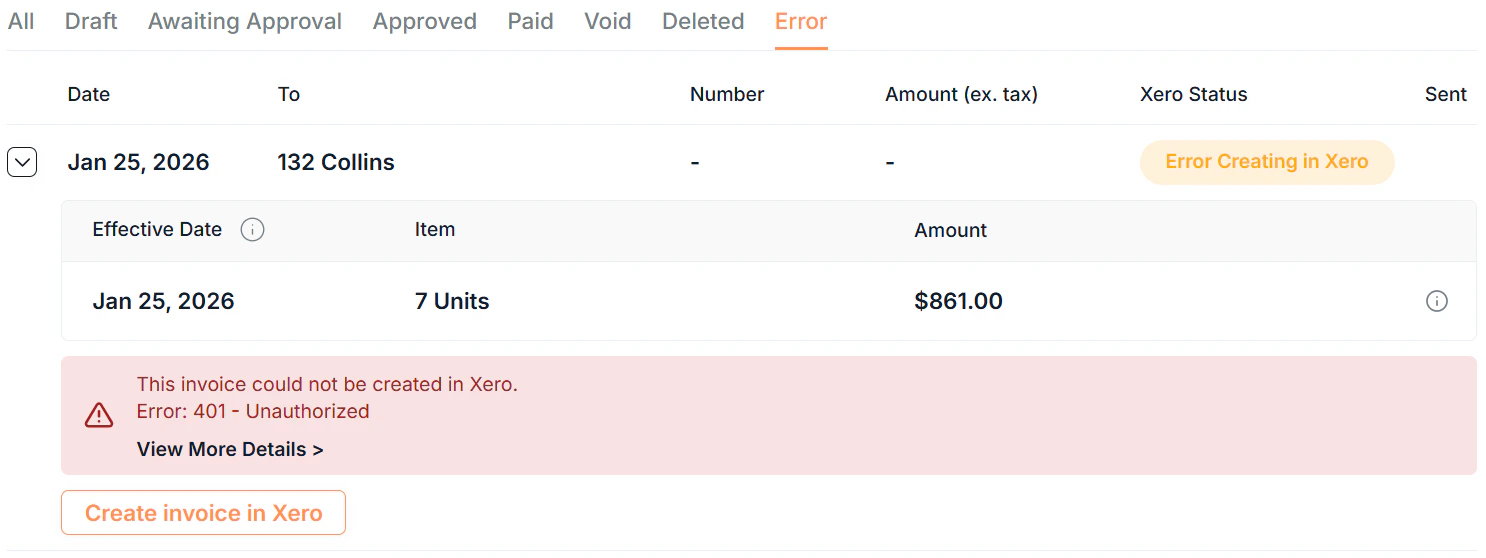
* **Error prompt:** shown when the invoice failed to create or sync correctly in Xero
* **Negative amount prompt:** shown when the invoice was deleted or voided after modification because there was no longer a chargebale amount
* **Credit note prompt:** shown when a credit note has been allocated to reduce the invoice's balance
***
## The invoices list
Click Invoices in the sidebar to see all invoices in your organisation.
### Tabs
Filter the list by status using the tabs at the top:
| Tab | What it shows |
| ------------------------------------------------------- | ---------------------------------------------------------- |
| All | Every invoice regardless of status |
| Draft | Invoices created but not yet approved in Xero |
| Awaiting Approval | Invoices ready to be approved in Xero |
| Approved | Approved invoices awaiting payment |
| Paid | Fully paid invoices |
| Void | Invoices that have been voided in Xero |
| Deleted | Invoices that have been deleted |
| Error | Invoices with a creation or sync error that need attention |
### Filtering and searching
* **Search:** free text search across invoice fields
* **Sort:** order by date or other fields
* **Download:** export all line items in your organisation as a CSV file
### What each row shows
Each invoice row displays:
| Column | Description |
| -------------------- | ------------------------------------------------- |
| **Date** | The date the invoice was generated |
| **To** | The customer the invoice is addressed to |
| **Number** | The Xero invoice reference number |
| **Amount (ex. tax)** | The invoice total excluding tax |
| **Xero Status** | The current status in Xero |
| **Sent** | Whether the invoice has been sent to the customer |
Click the on any invoice to see the line items and actions available for that invoice without leaving the list.
***
## Attention needed
When one or more invoices have errors or require action, an **Attention Needed** banner appears at the top of the [Invoices](https://app.saasybill.com/login?fw=invoices) page. Click View to navigate to the affected invoices.
Individual invoice rows can also surface alerts and show more information:
* **Error prompt:** shown when the invoice failed to create or sync correctly in Xero
* **Negative amount prompt:** shown when the invoice was deleted or voided after modification because there was no longer a chargebale amount
* **Credit note prompt:** shown when a credit note has been allocated to reduce the invoice's balance
 ***
## Invoice actions
Each invoice row has actions available based on its current status:
* **Create/Recreate invoice in Xero:** re-sends the invoice to Xero, useful when an invoice errored on creation
* **Modify invoice:** adjust the invoice details
* **Delete/Void invoice in Xero:** removes or voids the invoice in Xero (requires confirmation). If this was the most recent invoice on the subscription, an **Attention Needed** banner will appear on the associated subscription, where you can take recommended actions.
* **Delete invoice in Saasybill:** permanently removes the invoice in Saasybill (requires confirmation). This is only available if the invoice has already been deleted or voided in Xero, and it is not currently triggering an Attention Needed banner.
Deleting an invoice in Saasybill is permanent and not recommended. Resolve any attention needed prompts before removing the invoice.
***
## Creating an invoice
Invoices in Saasybill are always generated from subscription updates or renewals.
Click New in the top right to open the new invoice form.
***
## Invoice actions
Each invoice row has actions available based on its current status:
* **Create/Recreate invoice in Xero:** re-sends the invoice to Xero, useful when an invoice errored on creation
* **Modify invoice:** adjust the invoice details
* **Delete/Void invoice in Xero:** removes or voids the invoice in Xero (requires confirmation). If this was the most recent invoice on the subscription, an **Attention Needed** banner will appear on the associated subscription, where you can take recommended actions.
* **Delete invoice in Saasybill:** permanently removes the invoice in Saasybill (requires confirmation). This is only available if the invoice has already been deleted or voided in Xero, and it is not currently triggering an Attention Needed banner.
Deleting an invoice in Saasybill is permanent and not recommended. Resolve any attention needed prompts before removing the invoice.
***
## Creating an invoice
Invoices in Saasybill are always generated from subscription updates or renewals.
Click New in the top right to open the new invoice form.
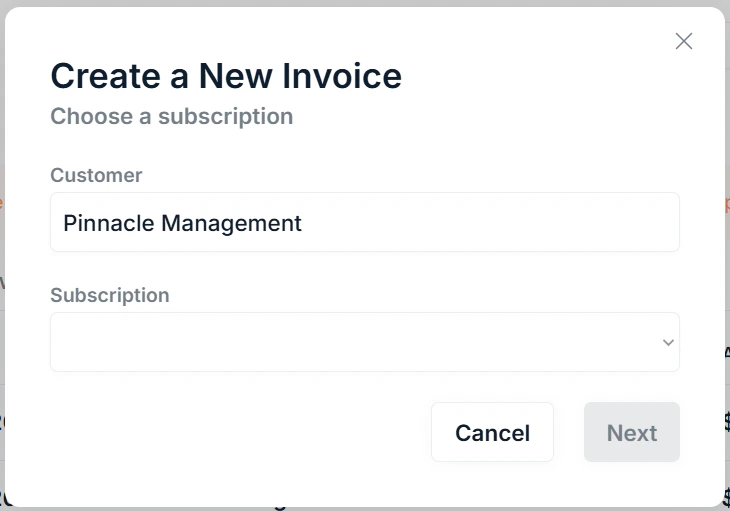 Search for and select the customer you want to invoice
Once a customer is selected, choose the subscription to update from the dropdown. If the customer has no applicable subscriptions, a message will appear.
Click Next to continue.
Change the number of units on the subscription and select the appropriate proration behaviour.
Updating the units here follows the same process as any other place in the app. See [Subscriptions](https://saasybill.mintlify.app/billing-workspace/subscriptions-workspace) for more details.
Click Confirm to update the subscription.
### What happens when you create an invoice
When you complete this flow:
* The subscription is updated
* If there is a chargeable amount, an invoice is created and synced to Xero
* Any invoices created follow the subscription's billing rules
Invoice due date and minimum invoice amount settings are configured in Company Settings and can be overridden at the subscription level. See [Subscriptions](/billing-workspace/subscriptions-workspace) for subscription-level overrides.
***
## Invoice line items
Expand any invoice by clicking to show its line items. Each line item corresponds to a billable component of the subscription: the base plan amount, any add-ons, and any prorated charges from a mid-cycle unit change.
See more details of any individual line item by clicking .
Search for and select the customer you want to invoice
Once a customer is selected, choose the subscription to update from the dropdown. If the customer has no applicable subscriptions, a message will appear.
Click Next to continue.
Change the number of units on the subscription and select the appropriate proration behaviour.
Updating the units here follows the same process as any other place in the app. See [Subscriptions](https://saasybill.mintlify.app/billing-workspace/subscriptions-workspace) for more details.
Click Confirm to update the subscription.
### What happens when you create an invoice
When you complete this flow:
* The subscription is updated
* If there is a chargeable amount, an invoice is created and synced to Xero
* Any invoices created follow the subscription's billing rules
Invoice due date and minimum invoice amount settings are configured in Company Settings and can be overridden at the subscription level. See [Subscriptions](/billing-workspace/subscriptions-workspace) for subscription-level overrides.
***
## Invoice line items
Expand any invoice by clicking to show its line items. Each line item corresponds to a billable component of the subscription: the base plan amount, any add-ons, and any prorated charges from a mid-cycle unit change.
See more details of any individual line item by clicking .
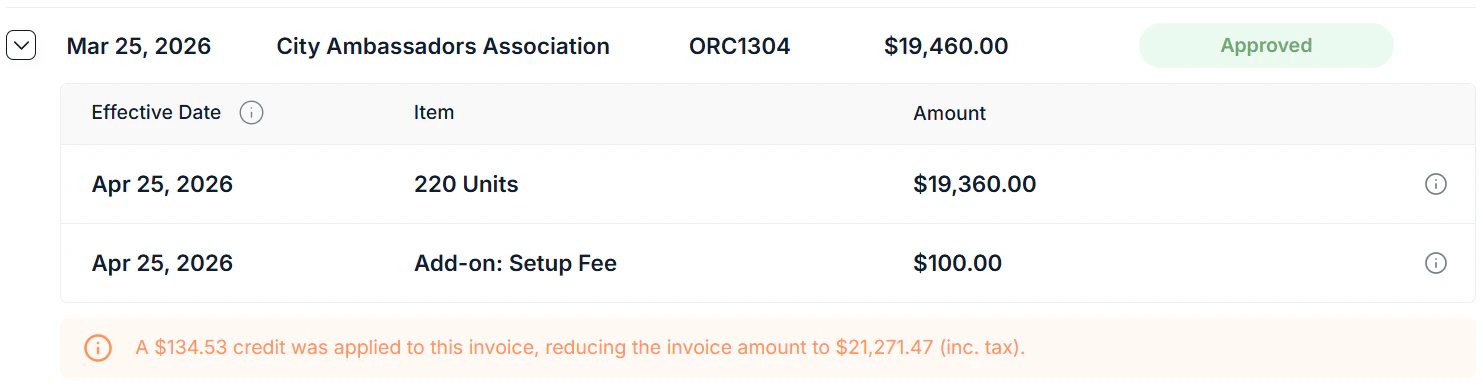 Line items map directly to Xero invoice lines, so what you see in Saasybill matches what appears in Xero.