> ## Documentation Index
> Fetch the complete documentation index at: https://docs.saasybill.com/llms.txt
> Use this file to discover all available pages before exploring further.
# Subscriptions
> How to find, create, manage, and update subscriptions in the Billing Workspace
This page covers how to use the Subscriptions section of the app. For a conceptual explanation of how subscriptions work, what drives invoices, and how lifecycle states behave, see [Subscriptions explained](/core/subscriptions) in Core Concepts.
The Subscriptions page is your operational view of all billing activity. From here you can see every subscription across your customer base, create new ones, update units, and track what's happened on each subscription over time.
 ***
## The subscriptions list
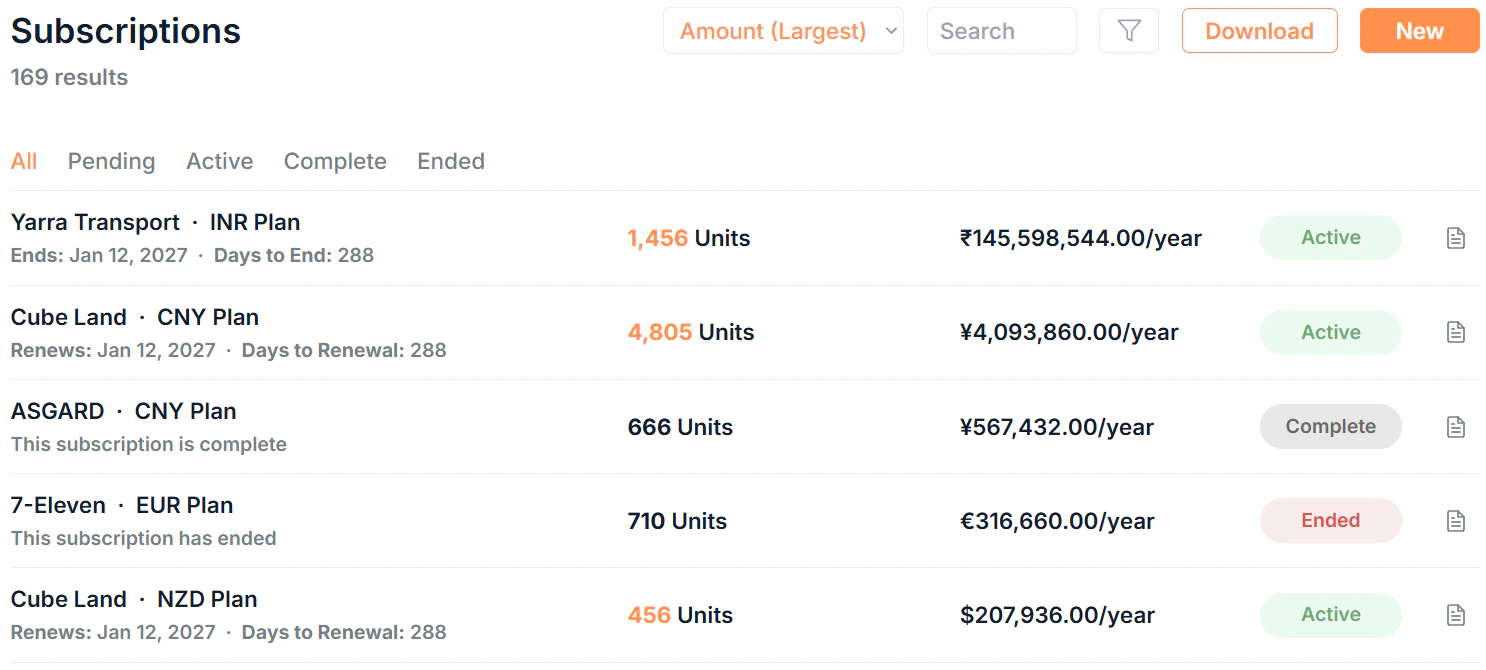
Click Subscriptions in the sidebar to see all subscriptions in your organisation.
### Tabs
Filter the list by status using the tabs at the top:
| Tab | What it shows |
| --------------------------------------------- | --------------------------------------------------- |
| All | Every subscription regardless of status |
| Pending | Subscriptions created but not yet started |
| Active | Currently live and billing subscriptions |
| Complete | Subscriptions that have reached their scheduled end |
| Ended | Subscriptions that were ended manually or cancelled |
### Filtering and searching
* **Search:** free text search across subscription fields
* **Sort:** order by date or other fields
* **Filter:** filter by Start Date, Renewal Date, or End Date
* **Download:** export all subscriptions in your organisation as a CSV file
### What each row shows
Each subscription row displays:
| Column | Description |
| ------------------------ | -------------------------------------------------------------------------------------------------------------------------------------- |
| **Customer · Plan** | The customer and plan name. Click to open details. |
| **Dates** | Relevant dates and days until based on the current status. |
| **Units** | Current unit count and unit type. |
| **Subscription Value** | The subscription amount per billing period. |
| **Status** | Pending, Active, Complete, or Ended |
| **Subscription History** | Click to view the unit change history for that subscription. |
***
## Attention needed
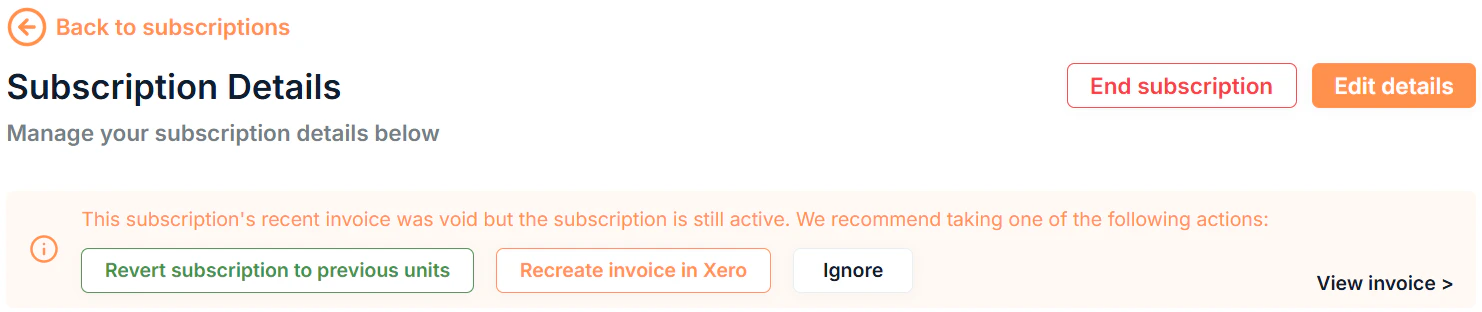
When one or more subscriptions require action, such as an invoice discrepancy or a credit note that needs allocating, an **Attention Needed** banner appears at the top of the page. Click View to go to the affected subscription.
### Attention needed prompts on details page
Two types of alerts can appear at the top of the subscription details page:
1. **Invoice attention:** shown when the most recent invoice has a discrepancy.
2. **Credit note attention:** shown when a credit note requires action.
Recommended actions are shown to fix the error depending on the event.
***
## The subscriptions list
Click Subscriptions in the sidebar to see all subscriptions in your organisation.
### Tabs
Filter the list by status using the tabs at the top:
| Tab | What it shows |
| --------------------------------------------- | --------------------------------------------------- |
| All | Every subscription regardless of status |
| Pending | Subscriptions created but not yet started |
| Active | Currently live and billing subscriptions |
| Complete | Subscriptions that have reached their scheduled end |
| Ended | Subscriptions that were ended manually or cancelled |
### Filtering and searching
* **Search:** free text search across subscription fields
* **Sort:** order by date or other fields
* **Filter:** filter by Start Date, Renewal Date, or End Date
* **Download:** export all subscriptions in your organisation as a CSV file
### What each row shows
Each subscription row displays:
| Column | Description |
| ------------------------ | -------------------------------------------------------------------------------------------------------------------------------------- |
| **Customer · Plan** | The customer and plan name. Click to open details. |
| **Dates** | Relevant dates and days until based on the current status. |
| **Units** | Current unit count and unit type. |
| **Subscription Value** | The subscription amount per billing period. |
| **Status** | Pending, Active, Complete, or Ended |
| **Subscription History** | Click to view the unit change history for that subscription. |
***
## Attention needed
When one or more subscriptions require action, such as an invoice discrepancy or a credit note that needs allocating, an **Attention Needed** banner appears at the top of the page. Click View to go to the affected subscription.
### Attention needed prompts on details page
Two types of alerts can appear at the top of the subscription details page:
1. **Invoice attention:** shown when the most recent invoice has a discrepancy.
2. **Credit note attention:** shown when a credit note requires action.
Recommended actions are shown to fix the error depending on the event.
 ***
## Creating a subscription
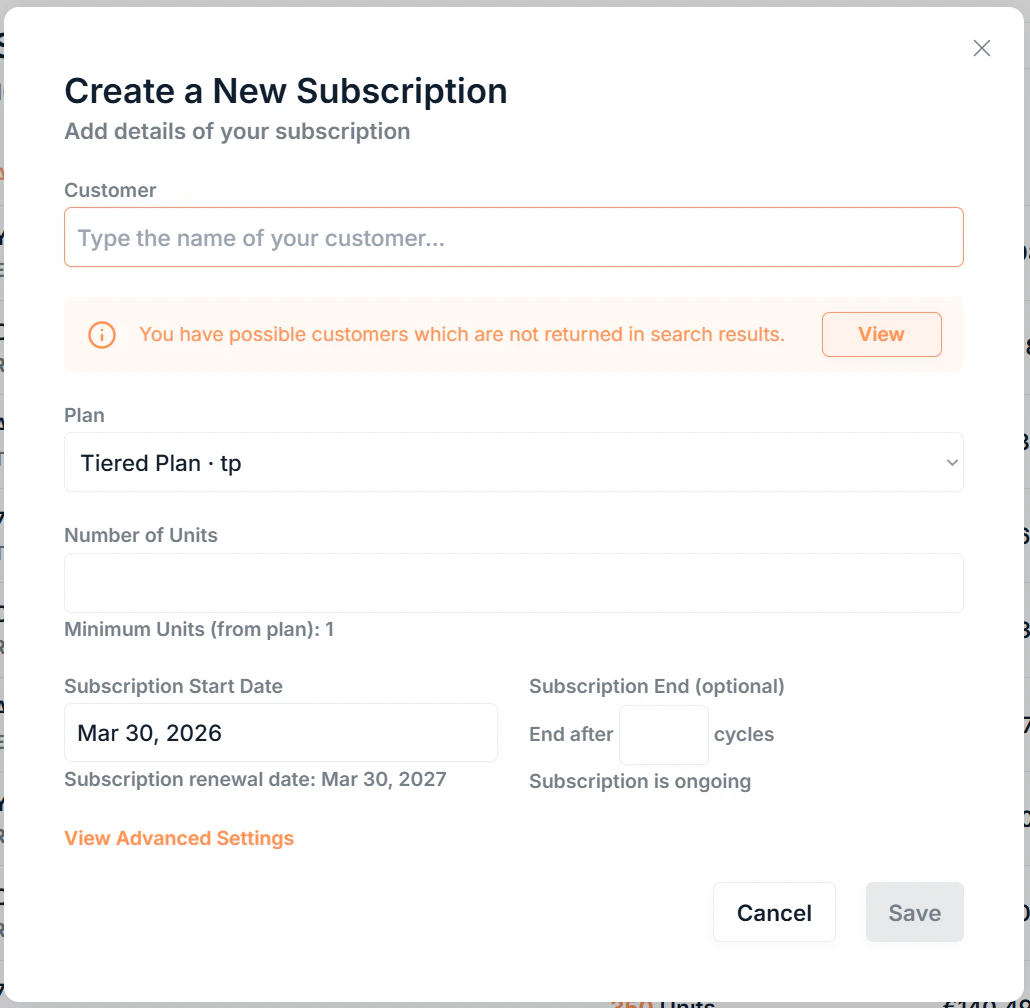
Click New in the top right to open the new subscription form. You can also create a subscription directly from a customer's details page by clicking Add.
***
## Creating a subscription
Click New in the top right to open the new subscription form. You can also create a subscription directly from a customer's details page by clicking Add.
 ### Required fields
**Customer:** search for and select the customer. If expected customers aren't appearing, a prompt will suggest how to find them.
**Plan:** select the plan that defines the pricing and billing structure. The plan's subscription period determines when the first renewal will occur.
**Number of Units:** enter the total unit count. This must be above the plan's minimum units.
**Subscription Start Date:** the date billing begins. The estimated renewal date is shown automatically below the picker.
If the estimated renewal date is within the **Invoice Create Days** set in your [Company Settings](/settings/account#company-settings), Saasybill will confirm that the subscription will renew immediately on save (unless you are in Setup Mode).
### Optional fields
**Subscription End:** set the subscription to automatically end after a specified number of billing cycles. The estimated end date is shown once you enter a cycle count.
### Advanced settings
Click **View Advanced Settings** to access:
| Setting | What it does |
| -------------------------- | ------------------------------------------------------------------------------------------------------------------------------------------------------------------------------------------------------------------- |
| **Discount percentage** | Applies a percentage reduction to the plan amount. The discount always applies to the plan. When selecting add-ons and charges below, you can also choose to apply it to individual optional items. |
| **Optional items** | Add recurring add-ons or one-time charges to this subscription. For each item, choose whether the subscription discount percentage applies , or doesn't apply (default). |
| **Minimum units** | Overrides the plan level minimum for this specific subscription. Must be greater than the plan's minimum units. |
| **Minimum invoice amount** | Overrides the company level minimum invoice threshold before an invoice is set to **Awaiting Approval**. |
| **Invoice due date** | Overrides the default number of days after the invoice date that payment is due. |
Click Save to create the subscription. If you are not in Setup Mode, the appropriate invoice will be created in Xero immediately.
***
## Subscription details
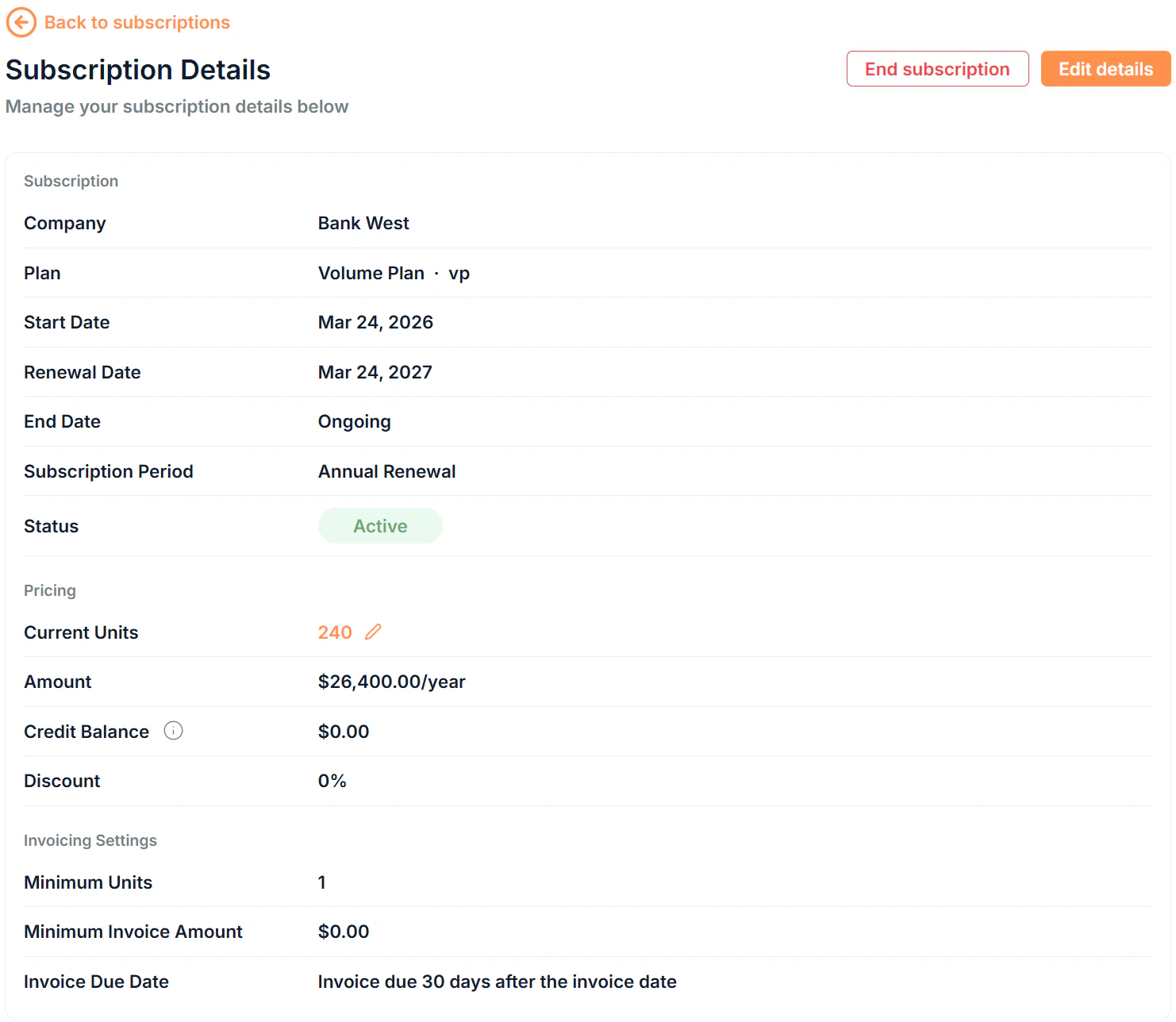
Click any subscription's **Name** to open its details page. The details page is split into up to six sections depending on the configuration.
### Required fields
**Customer:** search for and select the customer. If expected customers aren't appearing, a prompt will suggest how to find them.
**Plan:** select the plan that defines the pricing and billing structure. The plan's subscription period determines when the first renewal will occur.
**Number of Units:** enter the total unit count. This must be above the plan's minimum units.
**Subscription Start Date:** the date billing begins. The estimated renewal date is shown automatically below the picker.
If the estimated renewal date is within the **Invoice Create Days** set in your [Company Settings](/settings/account#company-settings), Saasybill will confirm that the subscription will renew immediately on save (unless you are in Setup Mode).
### Optional fields
**Subscription End:** set the subscription to automatically end after a specified number of billing cycles. The estimated end date is shown once you enter a cycle count.
### Advanced settings
Click **View Advanced Settings** to access:
| Setting | What it does |
| -------------------------- | ------------------------------------------------------------------------------------------------------------------------------------------------------------------------------------------------------------------- |
| **Discount percentage** | Applies a percentage reduction to the plan amount. The discount always applies to the plan. When selecting add-ons and charges below, you can also choose to apply it to individual optional items. |
| **Optional items** | Add recurring add-ons or one-time charges to this subscription. For each item, choose whether the subscription discount percentage applies , or doesn't apply (default). |
| **Minimum units** | Overrides the plan level minimum for this specific subscription. Must be greater than the plan's minimum units. |
| **Minimum invoice amount** | Overrides the company level minimum invoice threshold before an invoice is set to **Awaiting Approval**. |
| **Invoice due date** | Overrides the default number of days after the invoice date that payment is due. |
Click Save to create the subscription. If you are not in Setup Mode, the appropriate invoice will be created in Xero immediately.
***
## Subscription details
Click any subscription's **Name** to open its details page. The details page is split into up to six sections depending on the configuration.
 ### Subscription Details
Shows the general details and settings of the subscription.
#### Subscription
| Field | Description |
| ----------------------- | -------------------------------------------------- |
| **Company** | The customer this subscription belongs to |
| **Plan** | The plan this subscription is on |
| **Start Date** | When the subscription started |
| **Renewal Date** | The next scheduled renewal date |
| **End Date** | When the subscription is scheduled to end (if set) |
| **Subscription Period** | The billing frequency |
| **Status** | Current status |
#### Pricing
| Field | Description |
| ------------------ | -------------------------------------------------------------------------- |
| **Current Units** | Live unit count. Click to update units. |
| **Paid Units** | Total number of units paid for. |
| **Amount** | Subscription amount per period (after any discount). |
| **Credit Balance** | Total available credit on this subscription. Used against future invoices. |
| **Discount** | Discount percentage applied (if any). |
#### Invoicing settings
| Field | Description |
| :------------------------- | :----------------------------------------------------------------------- |
| **Minimum Units** | The minimum number of units the subscription must have. |
| **Minimum Invoice Amount** | The minimum threshold before an invoice is set to **Awaiting Approval**. |
| **Invoice Due Date** | The number of days after the invoice date that payment is due. |
### Add-ons
The Add-ons section lists all add-ons currently attached to the subscription. Each row shows the add-on's name, add-on ID, description, and price per billing period.
You cannot remove add-ons once they have been added to a subscription.
To attach a new add-on, click Add an add-on, then select an existing add-on from you Product Catalogue. Once selected, a new invoice will be generated billing for the new add-on.
Add-ons can only be added to **Pending** subscriptions.
### Invoices
The Invoices section shows all invoices that have been generated on this subscription. Each invoice row displays:
| Column | Description |
| --------------------- | ------------------------------------------------- |
| **Date** | The date the invoice was generated |
| **Number** | The Xero invoice reference number |
| **Amount (ex. tax)** | The invoice total excluding tax |
| **Amount (inc. tax)** | The invoice total including tax |
| **Xero Status** | The current status in Xero |
| **Sent** | Whether the invoice has been sent to the customer |
Click the on any invoice to expand it and see the line items and actions available for that invoice.
For more information on invoices, see the [Invoices](https://saasybill.mintlify.app/billing-workspace/invoices) documentation.
Click Download data to export all line items on the subscription as a CSV file.
Invoices are synced to and managed in Xero. To update an invoice's status, change it in Xero.
#### Deferred Line Items
The Deferred Line Items section shows line items that have been generated but not yet invoiced. They will be included in the next renewal invoice when the subscription renews. Each line item row shows:
| Column | Description |
| --------------------------- | --------------------------------------------------------- |
| **Effective Date** | The date the charge took effect |
| **Item** | The item being charged |
| **Amount** | The charge amount of the line item |
| **Invoice now** | Create an invoice and bill for this line item immediately |
| | Click to show more details of the line item |
If you need to invoice a line item before the scheduled renewal date, click Invoice now. This immediately creates an invoice in Xero for that line item and it will no longer be billed on renewal.
### Credit Notes
The Credit Notes section shows all credit notes that have been generated on this subscription. Each credit note row displays:
| Column | Description |
| :-------------------- | :------------------------------------------------------------------------------------------------------------------------------------------ |
| **Date** | The date the credit note was generated |
| **Number** | The Xero credit note reference number |
| **Amount (ex. tax)** | The credit note total excluding tax |
| **Amount (inc. tax)** | The credit note total including tax |
| **Xero Status** | The current status in Xero |
| **Application** | Unapplied, Partial, Applied, or Error |
Click the on any credit note to expand it and see the line items and actions available for that credit note.
### Subscription Details
Shows the general details and settings of the subscription.
#### Subscription
| Field | Description |
| ----------------------- | -------------------------------------------------- |
| **Company** | The customer this subscription belongs to |
| **Plan** | The plan this subscription is on |
| **Start Date** | When the subscription started |
| **Renewal Date** | The next scheduled renewal date |
| **End Date** | When the subscription is scheduled to end (if set) |
| **Subscription Period** | The billing frequency |
| **Status** | Current status |
#### Pricing
| Field | Description |
| ------------------ | -------------------------------------------------------------------------- |
| **Current Units** | Live unit count. Click to update units. |
| **Paid Units** | Total number of units paid for. |
| **Amount** | Subscription amount per period (after any discount). |
| **Credit Balance** | Total available credit on this subscription. Used against future invoices. |
| **Discount** | Discount percentage applied (if any). |
#### Invoicing settings
| Field | Description |
| :------------------------- | :----------------------------------------------------------------------- |
| **Minimum Units** | The minimum number of units the subscription must have. |
| **Minimum Invoice Amount** | The minimum threshold before an invoice is set to **Awaiting Approval**. |
| **Invoice Due Date** | The number of days after the invoice date that payment is due. |
### Add-ons
The Add-ons section lists all add-ons currently attached to the subscription. Each row shows the add-on's name, add-on ID, description, and price per billing period.
You cannot remove add-ons once they have been added to a subscription.
To attach a new add-on, click Add an add-on, then select an existing add-on from you Product Catalogue. Once selected, a new invoice will be generated billing for the new add-on.
Add-ons can only be added to **Pending** subscriptions.
### Invoices
The Invoices section shows all invoices that have been generated on this subscription. Each invoice row displays:
| Column | Description |
| --------------------- | ------------------------------------------------- |
| **Date** | The date the invoice was generated |
| **Number** | The Xero invoice reference number |
| **Amount (ex. tax)** | The invoice total excluding tax |
| **Amount (inc. tax)** | The invoice total including tax |
| **Xero Status** | The current status in Xero |
| **Sent** | Whether the invoice has been sent to the customer |
Click the on any invoice to expand it and see the line items and actions available for that invoice.
For more information on invoices, see the [Invoices](https://saasybill.mintlify.app/billing-workspace/invoices) documentation.
Click Download data to export all line items on the subscription as a CSV file.
Invoices are synced to and managed in Xero. To update an invoice's status, change it in Xero.
#### Deferred Line Items
The Deferred Line Items section shows line items that have been generated but not yet invoiced. They will be included in the next renewal invoice when the subscription renews. Each line item row shows:
| Column | Description |
| --------------------------- | --------------------------------------------------------- |
| **Effective Date** | The date the charge took effect |
| **Item** | The item being charged |
| **Amount** | The charge amount of the line item |
| **Invoice now** | Create an invoice and bill for this line item immediately |
| | Click to show more details of the line item |
If you need to invoice a line item before the scheduled renewal date, click Invoice now. This immediately creates an invoice in Xero for that line item and it will no longer be billed on renewal.
### Credit Notes
The Credit Notes section shows all credit notes that have been generated on this subscription. Each credit note row displays:
| Column | Description |
| :-------------------- | :------------------------------------------------------------------------------------------------------------------------------------------ |
| **Date** | The date the credit note was generated |
| **Number** | The Xero credit note reference number |
| **Amount (ex. tax)** | The credit note total excluding tax |
| **Amount (inc. tax)** | The credit note total including tax |
| **Xero Status** | The current status in Xero |
| **Application** | Unapplied, Partial, Applied, or Error |
Click the on any credit note to expand it and see the line items and actions available for that credit note.
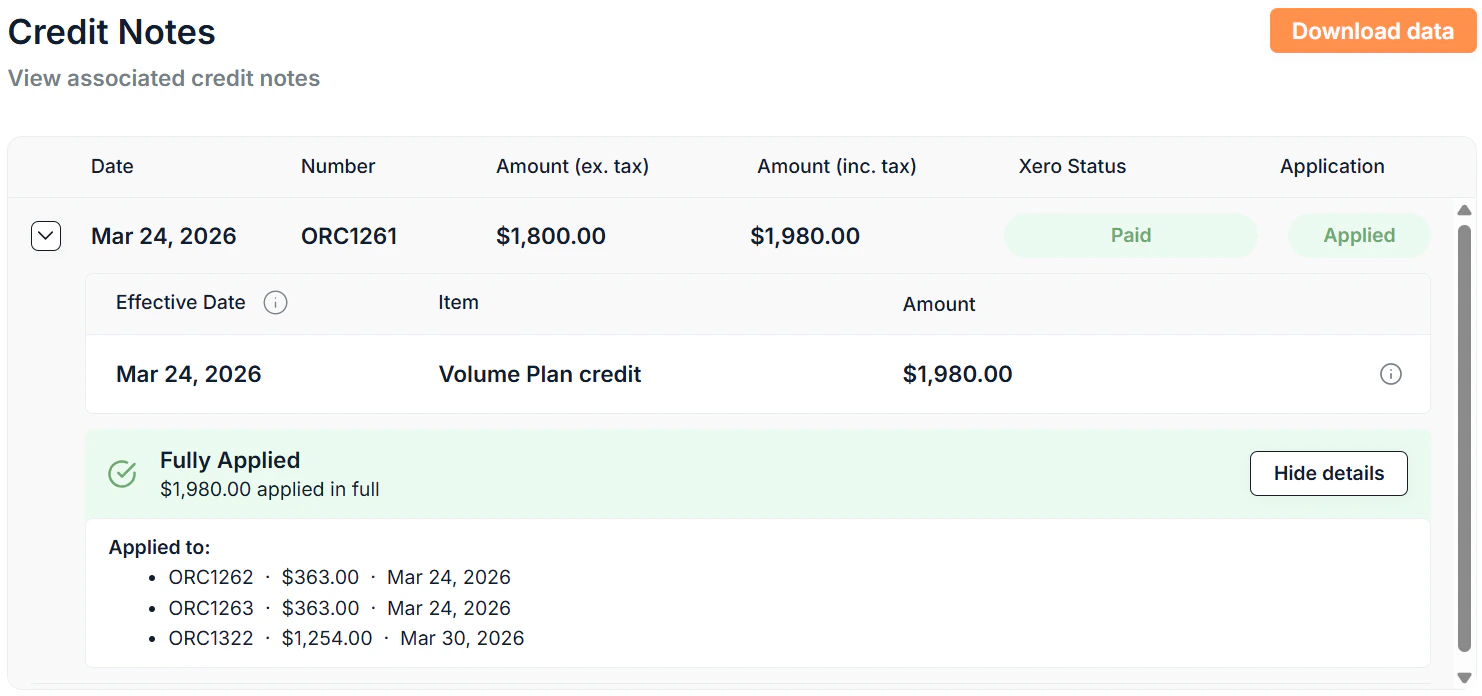 Credit notes are generated automatically by Saasybill when an increase in units results in a lesser payable amount. They are synced to and managed in Xero. For more information, see [Billing Changes](/core/billing-changes).
Click Download data to export all credit note line items on the subscription as a CSV file.
### Subscription History
The history table shows every unit change over the subscription's lifetime:
| Column | Description |
| :----------------- | :---------------------------------------------------------------------------------------------------------------------------------------------------------------------------------------------------------------------------------------------------------------------------------------------------------------------------------------------------------------------------------------------------------------------- |
| **Created Date** | The date the change was made in Saasybill |
| **Effective Date** | The date the change took effect |
| **Previous Units** | The unit count before the change |
| **Updated Units** | The unit count after the change |
| **Unit Change** | The delta: the positive or negative unit movement |
| **Type** | The type of change (New, Renewal, Expansion, or Contraction) |
| **Charge Type** | The type of associated charge created on an update:
Credit notes are generated automatically by Saasybill when an increase in units results in a lesser payable amount. They are synced to and managed in Xero. For more information, see [Billing Changes](/core/billing-changes).
Click Download data to export all credit note line items on the subscription as a CSV file.
### Subscription History
The history table shows every unit change over the subscription's lifetime:
| Column | Description |
| :----------------- | :---------------------------------------------------------------------------------------------------------------------------------------------------------------------------------------------------------------------------------------------------------------------------------------------------------------------------------------------------------------------------------------------------------------------- |
| **Created Date** | The date the change was made in Saasybill |
| **Effective Date** | The date the change took effect |
| **Previous Units** | The unit count before the change |
| **Updated Units** | The unit count after the change |
| **Unit Change** | The delta: the positive or negative unit movement |
| **Type** | The type of change (New, Renewal, Expansion, or Contraction) |
| **Charge Type** | The type of associated charge created on an update: - **N/A:** The change was made within the paid units or amount
- **Charged:** The change was prorated and charged immediately
- **Deferred:** The change was prorated and charged on renewal
- **No Charge:** The change was not prorated and not charged
- **Credit:** The change was prorated and generated a credit note
|
Click Download Data to export the history as a CSV file.
You can also click the of any subscription in the subscriptions list to view a simplified unit change history at a glance.
***
## Updating units
To update the number of units on an active subscription, click the current units in the Pricing section on the subscription details page. You can also update units directly from the subscriptions list row by clicking the units. An icon will show if the units can be updated.
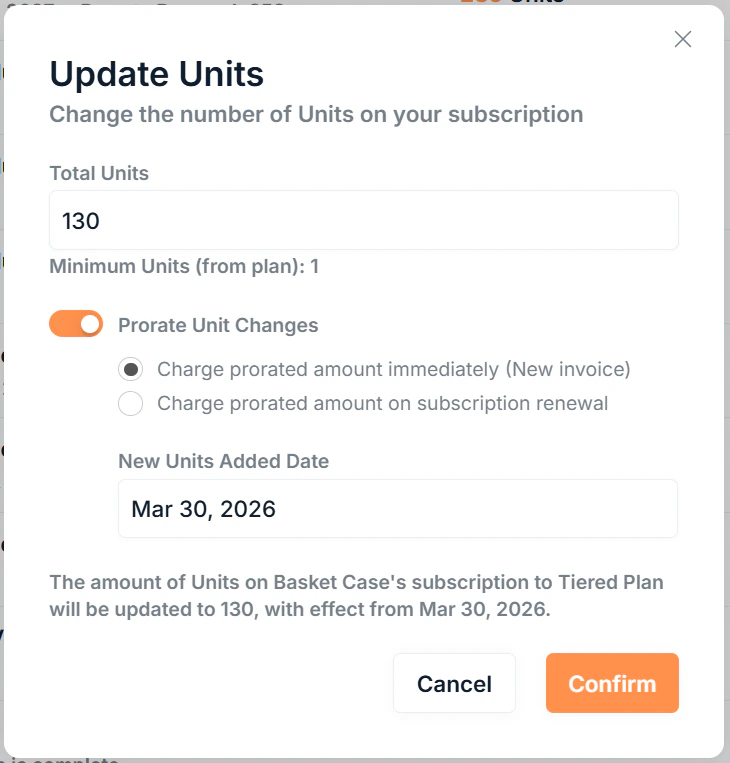 Enter the **new total unit count**, not the change amount.
**Proration toggle:** turn on to apply a prorated charge for a mid-cycle change. When enabled, choose a proration behaviour:
* **Immediate:** takes effect from the chosen effective date; a prorated invoice is created in Xero immediately
* \*\*On Renewal: \*\*takes effect from the chosen effective date; a prorated line item is added to the **Deferred Line Items** table to be billed on the renewal invoice
Credit notes are always generated as a prorated update and are creditted immediately. You can not adjust the proration behaviour in this case.
**Effective date:** the date from which the new unit count applies. Can be backdated or forward-dated within the current period.
Saasybill will show additional informational prompts based on your inputs and a description that summarises the change.
If the renewal is within one month, you'll also be asked whether to add the updated amount to the upcoming renewal invoice rather than raising a separate one.
Click Confirm to apply. The subscription updates immediately and Xero receives the relevant document.
For a full explanation of how proration is calculated and when invoices vs credit notes are created, see [Billing changes](/core/billing-changes).
***
## Ending a subscription
From the subscription details page you have three options:
| Action | What it does |
| ---------------------------------- | ------------------------------------------------------------------------------------------------------------------------------------------- |
| **End subscription at period end** | Schedules the subscription to stop at the next renewal date. Billing continues normally until then. |
| **End subscription now** | The subscription is stopped immediately. You cannot make any more updates to the subscription and no refund for the unused period is given. |
| **Delete subscription** | Permanently removes the subscription immediately. Invoices are voided and deleted in Xero. |
**To end a subscription:** open the details page, click End Subscription, and choose whether you want the subscription to end immediately or at the current period end.
A deleted subscription cannot be recovered. Use **End subscription** to keep the subscription
**Reverting a subscription:** if a subscription has been ended immediately but has not passed its renewal date yet, you can revert it back to active from the details page by clicking Revert subscription.
***
## Editing other fields
To edit other fields on a subscription click Edit details on the details page to update:
* Subscription Start Date (on Pending subscription only)
* Subscription End
Click **View Advanced Settings** to update:
* Discount Percentage (on Pending subscriptions only)
* Minimum Units
* Minimum Invoice Amount
* Invoice Due Date
Enter the **new total unit count**, not the change amount.
**Proration toggle:** turn on to apply a prorated charge for a mid-cycle change. When enabled, choose a proration behaviour:
* **Immediate:** takes effect from the chosen effective date; a prorated invoice is created in Xero immediately
* \*\*On Renewal: \*\*takes effect from the chosen effective date; a prorated line item is added to the **Deferred Line Items** table to be billed on the renewal invoice
Credit notes are always generated as a prorated update and are creditted immediately. You can not adjust the proration behaviour in this case.
**Effective date:** the date from which the new unit count applies. Can be backdated or forward-dated within the current period.
Saasybill will show additional informational prompts based on your inputs and a description that summarises the change.
If the renewal is within one month, you'll also be asked whether to add the updated amount to the upcoming renewal invoice rather than raising a separate one.
Click Confirm to apply. The subscription updates immediately and Xero receives the relevant document.
For a full explanation of how proration is calculated and when invoices vs credit notes are created, see [Billing changes](/core/billing-changes).
***
## Ending a subscription
From the subscription details page you have three options:
| Action | What it does |
| ---------------------------------- | ------------------------------------------------------------------------------------------------------------------------------------------- |
| **End subscription at period end** | Schedules the subscription to stop at the next renewal date. Billing continues normally until then. |
| **End subscription now** | The subscription is stopped immediately. You cannot make any more updates to the subscription and no refund for the unused period is given. |
| **Delete subscription** | Permanently removes the subscription immediately. Invoices are voided and deleted in Xero. |
**To end a subscription:** open the details page, click End Subscription, and choose whether you want the subscription to end immediately or at the current period end.
A deleted subscription cannot be recovered. Use **End subscription** to keep the subscription
**Reverting a subscription:** if a subscription has been ended immediately but has not passed its renewal date yet, you can revert it back to active from the details page by clicking Revert subscription.
***
## Editing other fields
To edit other fields on a subscription click Edit details on the details page to update:
* Subscription Start Date (on Pending subscription only)
* Subscription End
Click **View Advanced Settings** to update:
* Discount Percentage (on Pending subscriptions only)
* Minimum Units
* Minimum Invoice Amount
* Invoice Due Date