> ## Documentation Index
> Fetch the complete documentation index at: https://docs.saasybill.com/llms.txt
> Use this file to discover all available pages before exploring further.
# Billing changes
> Understand what happens when a subscription changes mid-cycle; proration, invoices, credit notes, and timing
This page explains the logic behind billing changes. For step-by-step instructions on updating units in the app, see [Subscriptions](/billing-workspace/subscriptions-workspace) in the Billing Workspace section.
## What is a billing change?
A billing change is anything that happens to a subscription between renewals that affects the amount owed. The most common trigger is a unit update: a customer adding or removing seats, licences, or usage mid-cycle.
When a billing change occurs, Saasybill calculates the financial impact and creates the appropriate document in Xero automatically. No manual invoicing is required.
***
## What triggers a billing change
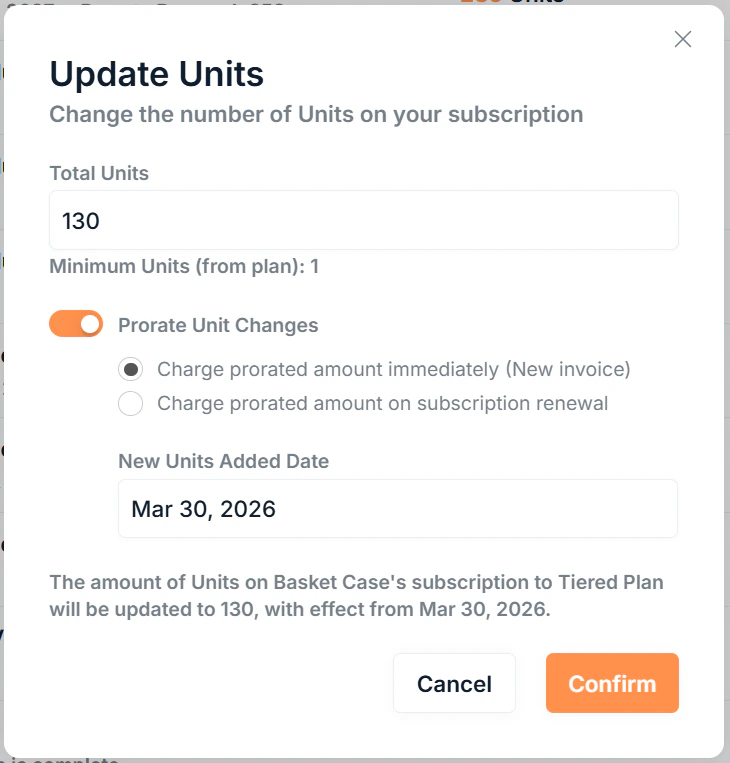
The primary trigger is a **unit update** on an active subscription. This covers:
* Increasing the number of units (customer grows)
* Decreasing the number of units (customer downsizes)
Other subscription edits, such as overriding an invoice setting, do not directly trigger a billing document.
***
## Billing outcomes
The plan type, direction of the change, and proration settings determine what Saasybill creates in Xero.
 ### All plan types
A prorated invoice is created in Xero for the additional amount owed from the effective date to the next renewal. Requires proration to be enabled.
No immediate billing document is created. The new unit count takes effect at the next renewal.
### Volume plans
Volume pricing applies a single per-unit rate to all units based on the total quantity, so crossing a tier threshold can actually reduce the total amount even when units go up.
When a unit change results in a higher total amount, a prorated invoice is created for the difference. Requires proration to be enabled.
When a unit increase crosses into a cheaper tier and the total amount decreases, a prorated credit note is created for the difference. Proration is always enabled and cannot be disabled.
No immediate billing document is created. The new unit count takes effect at the next renewal.
***
## How the prorated amount is calculated
The prorated amount is based on the **difference in subscription value** between the old and new unit counts, for the portion of the billing period remaining from the effective date to the next renewal.
```text theme={null}
Prorated amount = (new amount − old amount) × (days remaining ÷ days in period)
```
The **effective date** is the date you specify when making the change. It does not have to be today; you can backdate or forward-date it within the current billing period.
***
## Proration behaviour
If you are making a change within the paid units, such as a unit decrease, the option to prorate is not available.
When making a unit change, you choose one of three proration behaviours:
| Behaviour | What happens |
| ---------------- | ----------------------------------------------------------------------------------------------------------------------------------- |
| **Not prorated** | The change takes effect at the next renewal with no billing document created |
| **Immediate** | The change takes effect on the effective date and a prorated invoice or credit note is created immediately |
| **Next renewal** | The change takes effect on the effective date and a prorated line item is added to the renewal invoice when the subscription renews |
Choosing **Next renewal** is useful when you want to honour a commitment to a customer for the rest of the current period without generating any adjustment documents.
If a non-prorated update is made when increasing units, proration will be unavailable until the next period.
***
## Credit notes and credit balance
### All plan types
A prorated invoice is created in Xero for the additional amount owed from the effective date to the next renewal. Requires proration to be enabled.
No immediate billing document is created. The new unit count takes effect at the next renewal.
### Volume plans
Volume pricing applies a single per-unit rate to all units based on the total quantity, so crossing a tier threshold can actually reduce the total amount even when units go up.
When a unit change results in a higher total amount, a prorated invoice is created for the difference. Requires proration to be enabled.
When a unit increase crosses into a cheaper tier and the total amount decreases, a prorated credit note is created for the difference. Proration is always enabled and cannot be disabled.
No immediate billing document is created. The new unit count takes effect at the next renewal.
***
## How the prorated amount is calculated
The prorated amount is based on the **difference in subscription value** between the old and new unit counts, for the portion of the billing period remaining from the effective date to the next renewal.
```text theme={null}
Prorated amount = (new amount − old amount) × (days remaining ÷ days in period)
```
The **effective date** is the date you specify when making the change. It does not have to be today; you can backdate or forward-date it within the current billing period.
***
## Proration behaviour
If you are making a change within the paid units, such as a unit decrease, the option to prorate is not available.
When making a unit change, you choose one of three proration behaviours:
| Behaviour | What happens |
| ---------------- | ----------------------------------------------------------------------------------------------------------------------------------- |
| **Not prorated** | The change takes effect at the next renewal with no billing document created |
| **Immediate** | The change takes effect on the effective date and a prorated invoice or credit note is created immediately |
| **Next renewal** | The change takes effect on the effective date and a prorated line item is added to the renewal invoice when the subscription renews |
Choosing **Next renewal** is useful when you want to honour a commitment to a customer for the rest of the current period without generating any adjustment documents.
If a non-prorated update is made when increasing units, proration will be unavailable until the next period.
***
## Credit notes and credit balance
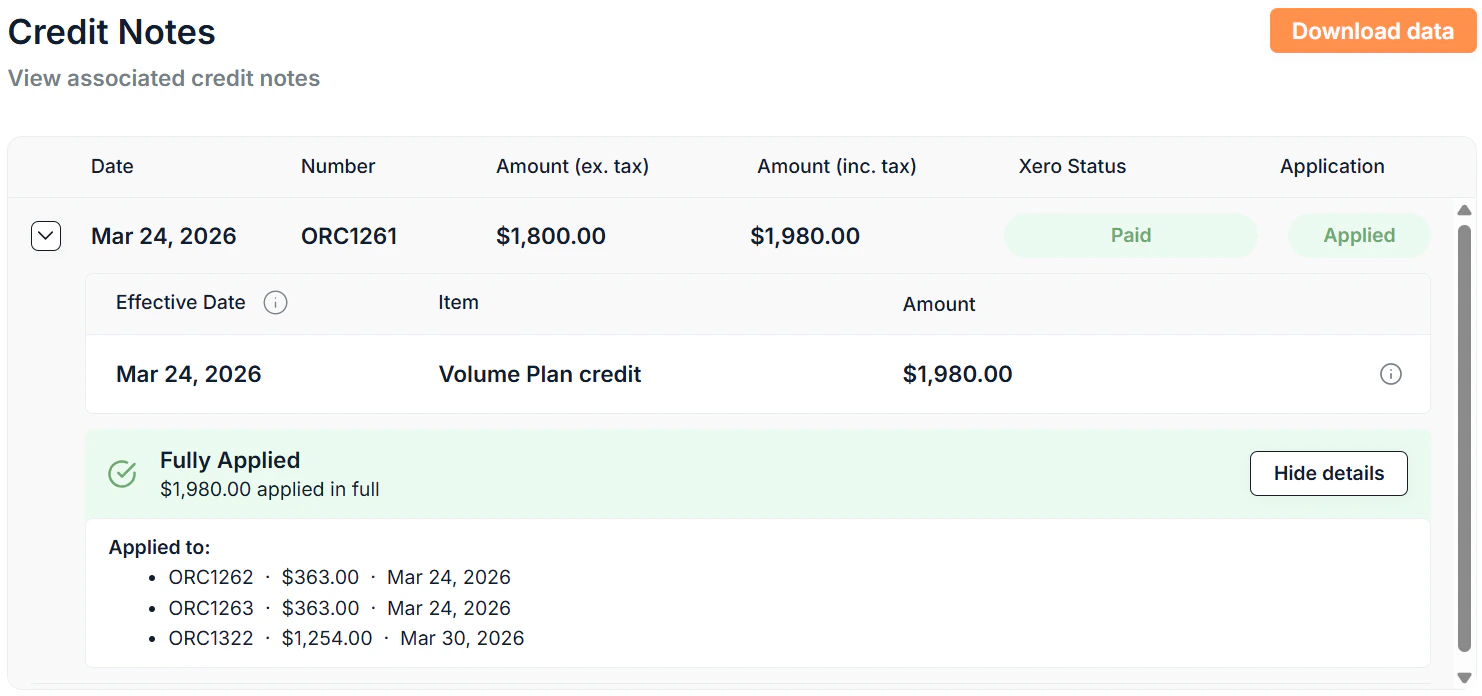 When a credit note is generated, the credit is not automatically refunded. Instead, it is held as a **credit balance** on the subscription in Saasybill and tracked as a credit note in Xero. You can see all credit notes and the changes that made them in the **Credit Notes** section of the subscription details page. See the full rundown on the [Subscriptions](/billing-workspace/subscriptions-workspace) page.
The credit balance is applied automatically to reduce future invoices on that subscription. Allocations are created in Xero to record this.
Credit notes may require an allocation action in Xero before the balance is applied. If a credit note needs attention, Saasybill will surface an alert on the subscription details page.
Credit notes can only be applied automatically if **Smart Invoice Approval** in your [Company Settings](/settings/account) is enabled. Otherwise, allocations will have to be made manually in Xero.
Adjusting credit notes in Xero may lead to inaccurate amounts in Saasybill. It is recommended to allow Saasybill to generate and apply credit notes automatically. If you must allocate a credit note in Xero, apply it to an invoice on the same subscription.
***
## The minimum invoice amount
Saasybill applies a minimum invoice amount threshold before moving an invoice to Awaiting Approval status in Xero. If the prorated amount falls below this threshold, the invoice remains in Draft.
This threshold can be set at the company level and overridden on individual subscriptions.
***
## Upcoming renewal behaviour
If the subscription renewal is within one month at the time of the unit change, Saasybill prompts you to decide whether the updated unit count should be added to the upcoming renewal invoice or kept as a separate prorated charge.
This avoids creating two separate invoices close together.
This only applies to annual subscriptions.
***
## What does not trigger a billing change
The following do not generate a billing document mid-cycle:
* Updating invoice due date or minimum invoice amount overrides
* Changing a plan's Xero account mappings
* Ending a subscription (no refund or credit is given for ending a subscription before the end of the current period)
***
## Subscription history
Every billing change is recorded in the subscription's history. This log tracks what changed, when it changed, and what billing document was created as a result. It is the audit trail for a subscription's lifecycle.
When a credit note is generated, the credit is not automatically refunded. Instead, it is held as a **credit balance** on the subscription in Saasybill and tracked as a credit note in Xero. You can see all credit notes and the changes that made them in the **Credit Notes** section of the subscription details page. See the full rundown on the [Subscriptions](/billing-workspace/subscriptions-workspace) page.
The credit balance is applied automatically to reduce future invoices on that subscription. Allocations are created in Xero to record this.
Credit notes may require an allocation action in Xero before the balance is applied. If a credit note needs attention, Saasybill will surface an alert on the subscription details page.
Credit notes can only be applied automatically if **Smart Invoice Approval** in your [Company Settings](/settings/account) is enabled. Otherwise, allocations will have to be made manually in Xero.
Adjusting credit notes in Xero may lead to inaccurate amounts in Saasybill. It is recommended to allow Saasybill to generate and apply credit notes automatically. If you must allocate a credit note in Xero, apply it to an invoice on the same subscription.
***
## The minimum invoice amount
Saasybill applies a minimum invoice amount threshold before moving an invoice to Awaiting Approval status in Xero. If the prorated amount falls below this threshold, the invoice remains in Draft.
This threshold can be set at the company level and overridden on individual subscriptions.
***
## Upcoming renewal behaviour
If the subscription renewal is within one month at the time of the unit change, Saasybill prompts you to decide whether the updated unit count should be added to the upcoming renewal invoice or kept as a separate prorated charge.
This avoids creating two separate invoices close together.
This only applies to annual subscriptions.
***
## What does not trigger a billing change
The following do not generate a billing document mid-cycle:
* Updating invoice due date or minimum invoice amount overrides
* Changing a plan's Xero account mappings
* Ending a subscription (no refund or credit is given for ending a subscription before the end of the current period)
***
## Subscription history
Every billing change is recorded in the subscription's history. This log tracks what changed, when it changed, and what billing document was created as a result. It is the audit trail for a subscription's lifecycle.