> ## Documentation Index
> Fetch the complete documentation index at: https://docs.saasybill.com/llms.txt
> Use this file to discover all available pages before exploring further.
# Add-ons
> How to create, view, and manage recurring add-ons in the Product Catalogue
This page covers how to manage add-ons in the app. For a conceptual explanation of how add-ons relate to subscriptions and billing, see [How Saasybill works](/core/how-saasybill-works).
Add-ons live in the **Product Catalogue** section of the sidebar alongside plans and charges. They are optional, separately priced items that can be attached to subscriptions to bill for supplementary products or services on top of a base plan.
Add-ons are recurring and billed at every renewal. For one-time fees such as setup or onboarding costs, use [Charges](/product-catalogue/charges) instead.
 ***
## The add-ons list
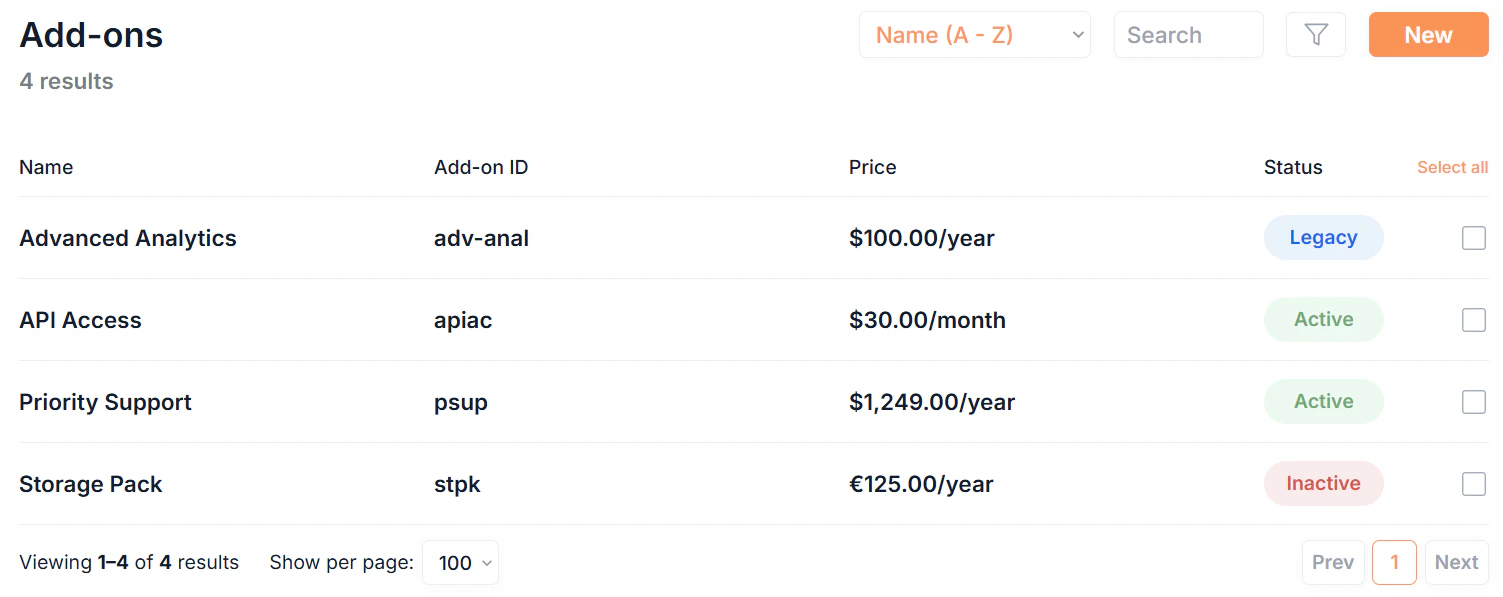
Click Add-ons in the sidebar to see all add-ons in your organisation.
### Filtering and searching
* **Search:** free text search across all add-on fields
* **Sort:** order by Name or Date Created
* **Filter:** filter by Status or Category
### What each row shows
Each add-on row displays:
| Column | Description |
| ------------- | ---------------------------------------------------------------------------------------------------------------- |
| **Name** | The display name of the add-on. Click to open details. |
| **Add-on ID** | The internal identifier. |
| **Price** | The flat price per billing cycle. |
| **Status** | Active, Legacy, or Inactive. |
Click any **Name** to open the add-on's details page.
***
## Creating an add-on
Click New in the top right to open the new add-on form. Add-on creation is a two-step process.
***
## The add-ons list
Click Add-ons in the sidebar to see all add-ons in your organisation.
### Filtering and searching
* **Search:** free text search across all add-on fields
* **Sort:** order by Name or Date Created
* **Filter:** filter by Status or Category
### What each row shows
Each add-on row displays:
| Column | Description |
| ------------- | ---------------------------------------------------------------------------------------------------------------- |
| **Name** | The display name of the add-on. Click to open details. |
| **Add-on ID** | The internal identifier. |
| **Price** | The flat price per billing cycle. |
| **Status** | Active, Legacy, or Inactive. |
Click any **Name** to open the add-on's details page.
***
## Creating an add-on
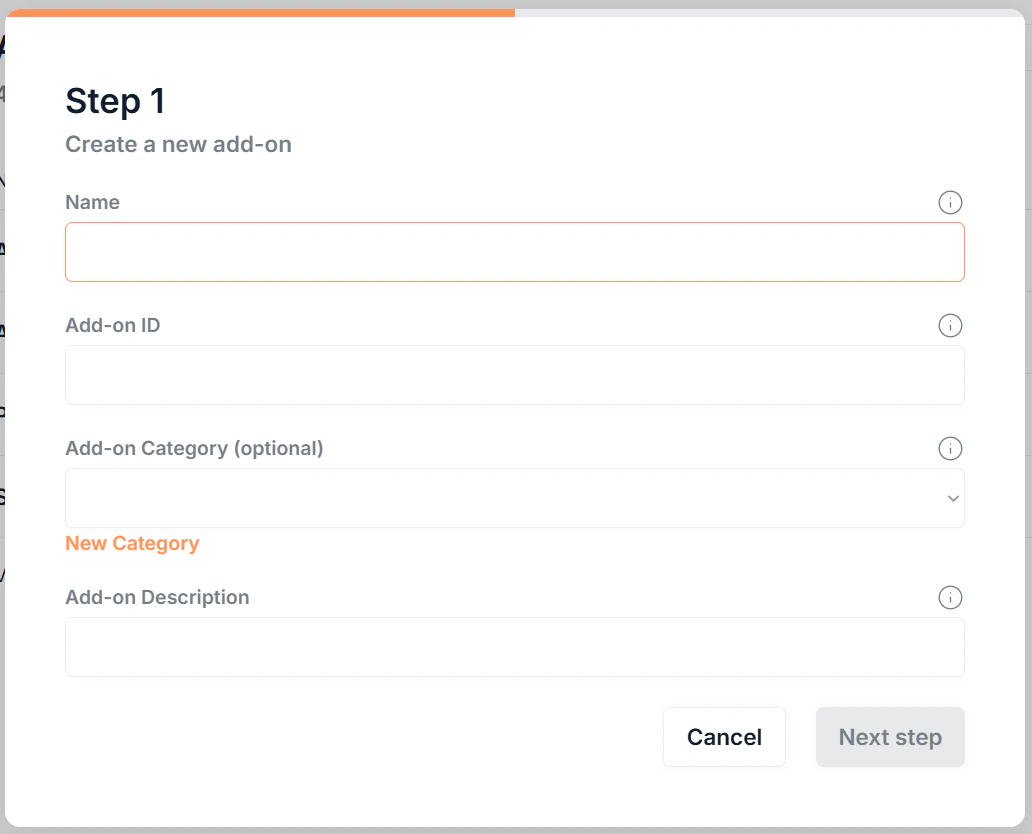
Click New in the top right to open the new add-on form. Add-on creation is a two-step process.
 | Field | Description |
| :--------------------- | :---------------------------------------------------------------------------------------------------------------------------------- |
| **Name** | The customer facing name of the add-on. This appears as the line item on invoices. |
| **Add-on ID** | An internal identifier for this add-on. |
| **Add-on Category** | Optional Grouping to organise similar add-ons. A new category can be created directly from this form. |
| **Add-on Description** | A short description of what this add-on provides. This appears as the item description on invoices. |
| **Status** | All add-ons are created as **Active**. |
Click Next step to continue.
| Field | Description |
| :-------------------- | :------------------------------------------------------------------------------------------------------------------ |
| **Currency** | The currency this add-on is priced in. Add-ons can only be used with plans of the same currency. |
| **Price** | The flat price charged per billing cycle. |
| **Billing Frequency** | How often the add-on is billed (Monthly or Annual). Add-ons can only be used with plans of the same billing period. |
Add-on pricing is always a fixed amount per billing cycle. Unlike plans, add-ons do not support tiered, volume, or per-unit pricing models.
Click Save to create the add-on.
***
## Add-on details
Click any add-on's **Name** to open its details page. The details page is split into two sections:
**Add-on details:** shows the name, add-on ID, add-on category, currency, description, and status.
**Fee details:** shows the price and billing frequency.
| Field | Description |
| :--------------------- | :---------------------------------------------------------------------------------------------------------------------------------- |
| **Name** | The customer facing name of the add-on. This appears as the line item on invoices. |
| **Add-on ID** | An internal identifier for this add-on. |
| **Add-on Category** | Optional Grouping to organise similar add-ons. A new category can be created directly from this form. |
| **Add-on Description** | A short description of what this add-on provides. This appears as the item description on invoices. |
| **Status** | All add-ons are created as **Active**. |
Click Next step to continue.
| Field | Description |
| :-------------------- | :------------------------------------------------------------------------------------------------------------------ |
| **Currency** | The currency this add-on is priced in. Add-ons can only be used with plans of the same currency. |
| **Price** | The flat price charged per billing cycle. |
| **Billing Frequency** | How often the add-on is billed (Monthly or Annual). Add-ons can only be used with plans of the same billing period. |
Add-on pricing is always a fixed amount per billing cycle. Unlike plans, add-ons do not support tiered, volume, or per-unit pricing models.
Click Save to create the add-on.
***
## Add-on details
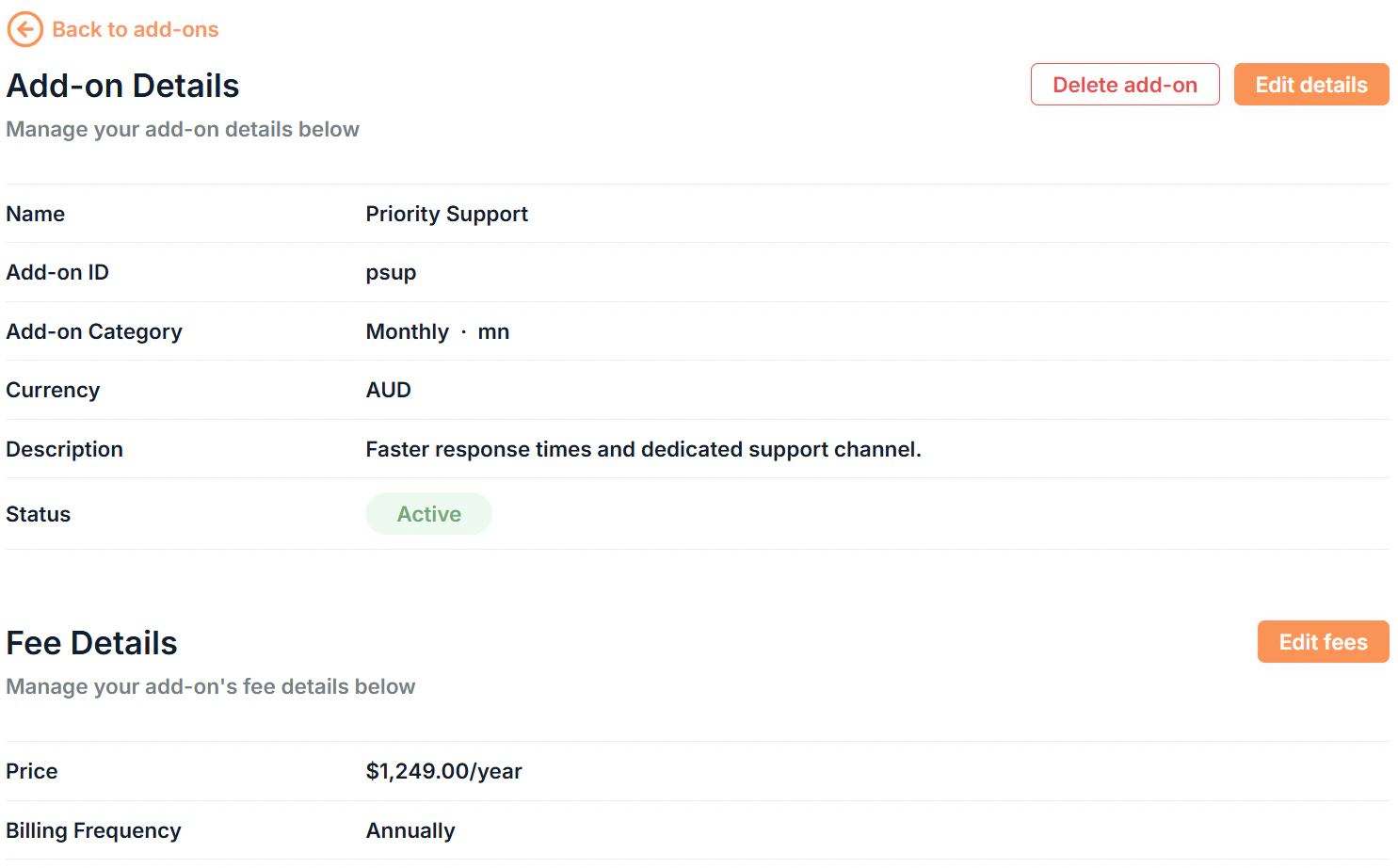
Click any add-on's **Name** to open its details page. The details page is split into two sections:
**Add-on details:** shows the name, add-on ID, add-on category, currency, description, and status.
**Fee details:** shows the price and billing frequency.
 ***
## Add-on statuses
| Status | What it means |
| --------------------------------------------- | ---------------------------------------------------------------- |
| Active | Available for new subscriptions |
| Legacy | In use on existing subscriptions but cannot be added to new ones |
| Inactive | Not in use and unavailable for new subscriptions |
Set an add-on to **Legacy** when you want to keep existing subscriptions running on it but stop new ones being created. Set it to **Inactive** to retire it without deleting it. Add-ons already attached to active subscriptions can only be set to **Active** or **Legacy**.
***
## Editing an add-on
Like plans, add-ons have two separate edit forms depending on what you need to change.
### Editing add-on details
Click Edit details on the add-on details page to update:
* Name
* Add-on ID
* Add-on Category
* Add-on Description
* Status
Click **View Advanced Settings** to update:
* Currency
### Editing fee details
Click Edit fees to update the pricing configuration:
* Price
* Billing Frequency
If an add-on has ever been used in a subscription, even a deleted one, its fee details cannot be edited. If you need different pricing, create a new add-on.
***
## Attaching add-ons to subscriptions
Add-ons are attached when creating a subscription. Open **Advanced Settings** on the subscription form and select charges from the **Add-ons** section.
By default, any subscription discount does not apply to add-ons. When adding an add-on, click to apply the subscription discount percentage to it. The default selected means no discount is applied.
See [Subscriptions](/billing-workspace/subscriptions-workspace) for full details on attaching add-ons to a subscription.
***
## Bulk actions
Select multiple add-ons in the list by clicking the of each add-on to:
* **Bulk Edit:** update the name, category, description, or status across multiple add-ons at once
* **Bulk Delete:** permanently remove multiple add-ons (requires confirmation)
When bulk editing, leave a field blank to leave that value unchanged for the selected add-ons.
Add-ons with active subscrtiptions cannot be deleted. Set them to Legacy or Inactive instead.
***
## Deleting an add-on
From the add-on's details page, click Delete add-on to remove it. A confirmation dialog appears before the action completes.
***
## Add-on statuses
| Status | What it means |
| --------------------------------------------- | ---------------------------------------------------------------- |
| Active | Available for new subscriptions |
| Legacy | In use on existing subscriptions but cannot be added to new ones |
| Inactive | Not in use and unavailable for new subscriptions |
Set an add-on to **Legacy** when you want to keep existing subscriptions running on it but stop new ones being created. Set it to **Inactive** to retire it without deleting it. Add-ons already attached to active subscriptions can only be set to **Active** or **Legacy**.
***
## Editing an add-on
Like plans, add-ons have two separate edit forms depending on what you need to change.
### Editing add-on details
Click Edit details on the add-on details page to update:
* Name
* Add-on ID
* Add-on Category
* Add-on Description
* Status
Click **View Advanced Settings** to update:
* Currency
### Editing fee details
Click Edit fees to update the pricing configuration:
* Price
* Billing Frequency
If an add-on has ever been used in a subscription, even a deleted one, its fee details cannot be edited. If you need different pricing, create a new add-on.
***
## Attaching add-ons to subscriptions
Add-ons are attached when creating a subscription. Open **Advanced Settings** on the subscription form and select charges from the **Add-ons** section.
By default, any subscription discount does not apply to add-ons. When adding an add-on, click to apply the subscription discount percentage to it. The default selected means no discount is applied.
See [Subscriptions](/billing-workspace/subscriptions-workspace) for full details on attaching add-ons to a subscription.
***
## Bulk actions
Select multiple add-ons in the list by clicking the of each add-on to:
* **Bulk Edit:** update the name, category, description, or status across multiple add-ons at once
* **Bulk Delete:** permanently remove multiple add-ons (requires confirmation)
When bulk editing, leave a field blank to leave that value unchanged for the selected add-ons.
Add-ons with active subscrtiptions cannot be deleted. Set them to Legacy or Inactive instead.
***
## Deleting an add-on
From the add-on's details page, click Delete add-on to remove it. A confirmation dialog appears before the action completes.