> ## Documentation Index
> Fetch the complete documentation index at: https://docs.saasybill.com/llms.txt
> Use this file to discover all available pages before exploring further.
# Categories
> How to create and manage categories to organise your plans, add-ons, and charges
Categories are labels that group your plans, add-ons, and charges in the Product Catalogue. They help keep your pricing catalogue organised as it grows and make it easier to filter and find products.
 ***
## The categories list
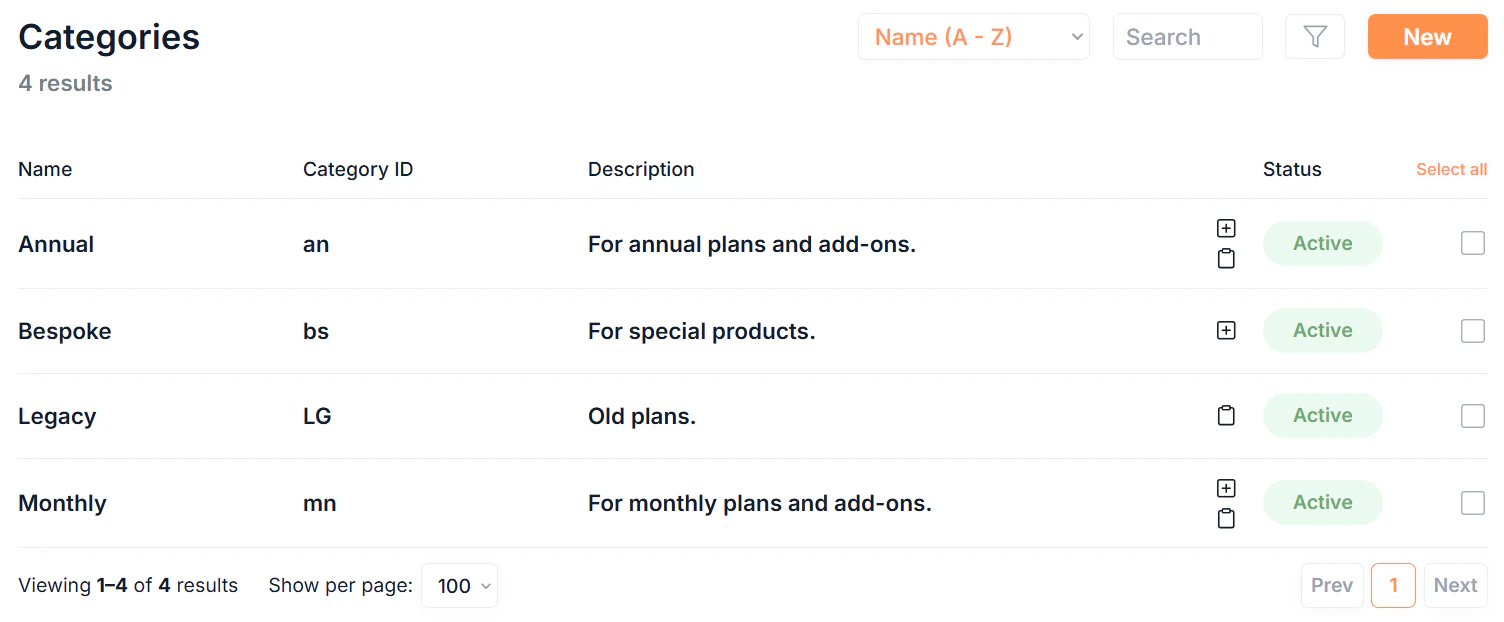
Click Categories in the sidebar to see all categories in your organisation.
Each row in the list displays:
| Column | Description |
| --------------- | ------------------------------------------------------------------------------------------------------------------------------------------------------------------- |
| **Name** | The display name of the category |
| **Category ID** | The internal identifier |
| **Description** | A short description of what this category covers |
| **Include In** | Icons showing whether this category applies to Plans , Add-ons , Charges , or a combination |
| **Status** | Active or Inactive |
***
## Creating a category
Click New in the top right to open the new category form. You can also create a category directly from the new plan, add-on, or charge forms by clicking the New Category option.
***
## The categories list
Click Categories in the sidebar to see all categories in your organisation.
Each row in the list displays:
| Column | Description |
| --------------- | ------------------------------------------------------------------------------------------------------------------------------------------------------------------- |
| **Name** | The display name of the category |
| **Category ID** | The internal identifier |
| **Description** | A short description of what this category covers |
| **Include In** | Icons showing whether this category applies to Plans , Add-ons , Charges , or a combination |
| **Status** | Active or Inactive |
***
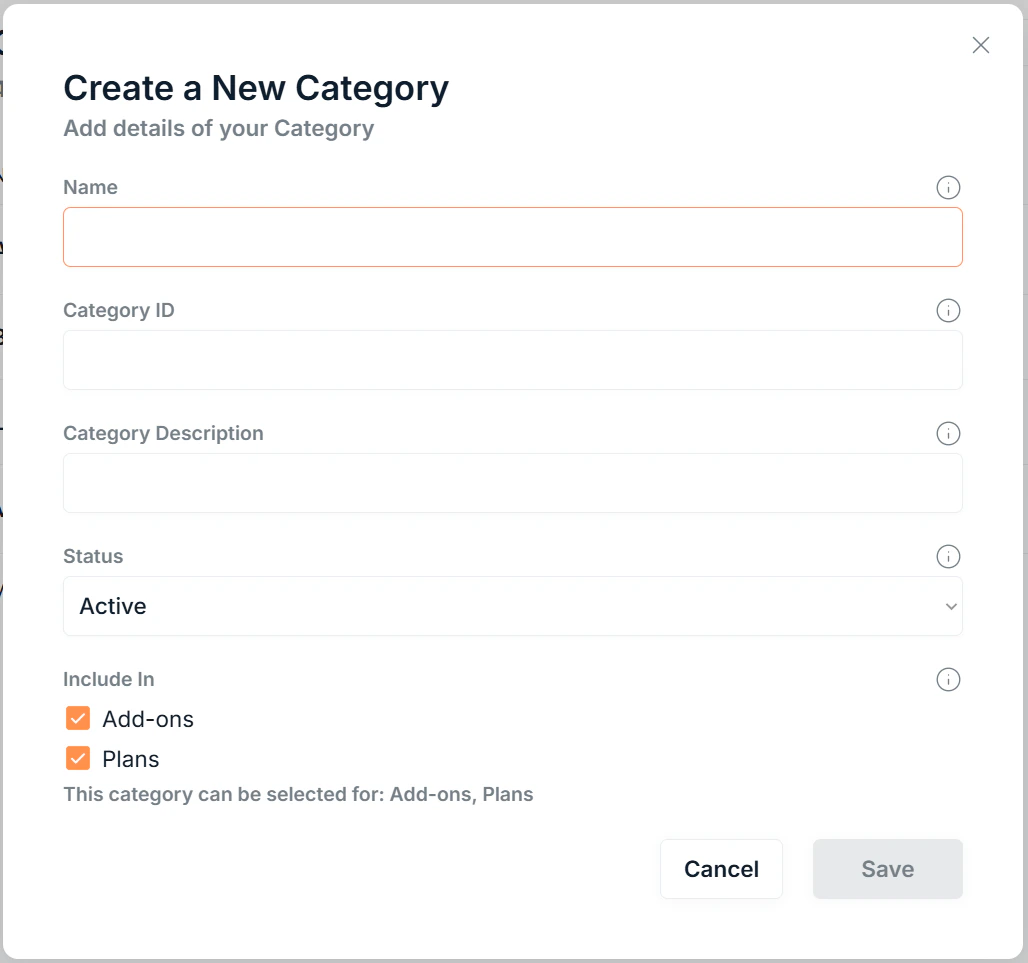
## Creating a category
Click New in the top right to open the new category form. You can also create a category directly from the new plan, add-on, or charge forms by clicking the New Category option.
 ### Fields
| Field | Description |
| ------------------------ | ----------------------------------------------------------------------------------------------------------------------------------------------------------- |
| **Name** | The display name of the category |
| **Category ID** | An internal identifier for this category |
| **Category Description** | A short description of what this category covers |
| **Status** | Active or Inactive |
| **Include In** | Select whether this category applies to **Plans**, **Add-ons**, **Charges**, or a combination. This controls where the category appears as a filter option. |
The **Include In** setting determines which product types the category is available for. A category set to Plans only will not appear as a filter option in Add-ons or Charges, and vice versa.
Click Save to create the category.
***
## Editing a category
Select any category from the table by clicking the . Then click the icon to update the category details. Any field can be edited after creation.
Setting a category to **Inactive** removes it from any products it was assigned to.
***
## Deleting a category
Select any category from the table by clicking the . Then click the icon. A confirmation dialog appears before the deletion completes.
Deleting a category removes it from any products it was assigned to. Those items will no longer have a category.
***
## Bulk actions
Select multiple categories in the list by clicking the of each category to:
* **Bulk Edit:** update the name, description, or status across multiple categories at once
* **Bulk Delete:** permanently remove multiple categories (requires confirmation)
When bulk editing, leave a field blank to leave that value unchanged for the selected categories.
***
## Where categories appear
Once created, categories surface as filter and grouping options across the app:
* **Plans list:** filter by category to narrow the plans shown
* **Add-ons list:** filter by category to narrow the add-ons shown
* **Charges list:** filter by category to narrow the charges shown
Categories are purely organisational. They do not affect billing behaviour.
### Fields
| Field | Description |
| ------------------------ | ----------------------------------------------------------------------------------------------------------------------------------------------------------- |
| **Name** | The display name of the category |
| **Category ID** | An internal identifier for this category |
| **Category Description** | A short description of what this category covers |
| **Status** | Active or Inactive |
| **Include In** | Select whether this category applies to **Plans**, **Add-ons**, **Charges**, or a combination. This controls where the category appears as a filter option. |
The **Include In** setting determines which product types the category is available for. A category set to Plans only will not appear as a filter option in Add-ons or Charges, and vice versa.
Click Save to create the category.
***
## Editing a category
Select any category from the table by clicking the . Then click the icon to update the category details. Any field can be edited after creation.
Setting a category to **Inactive** removes it from any products it was assigned to.
***
## Deleting a category
Select any category from the table by clicking the . Then click the icon. A confirmation dialog appears before the deletion completes.
Deleting a category removes it from any products it was assigned to. Those items will no longer have a category.
***
## Bulk actions
Select multiple categories in the list by clicking the of each category to:
* **Bulk Edit:** update the name, description, or status across multiple categories at once
* **Bulk Delete:** permanently remove multiple categories (requires confirmation)
When bulk editing, leave a field blank to leave that value unchanged for the selected categories.
***
## Where categories appear
Once created, categories surface as filter and grouping options across the app:
* **Plans list:** filter by category to narrow the plans shown
* **Add-ons list:** filter by category to narrow the add-ons shown
* **Charges list:** filter by category to narrow the charges shown
Categories are purely organisational. They do not affect billing behaviour.