> ## Documentation Index
> Fetch the complete documentation index at: https://docs.saasybill.com/llms.txt
> Use this file to discover all available pages before exploring further.
# Plans
> How to create, view, and manage plans in the Product Catalogue
This page covers how to manage plans in the app. For an explanation of how plans work, what the pricing models mean, and how plans connect to subscriptions, see [Plans explained](/core/plans) in Core Concepts.
Plans live in the **Product Catalogue** section of the sidebar. This is where you build and manage your pricing catalogue: creating plans, updating their details, and keeping your fee structures in order.
 ***
## The plans list
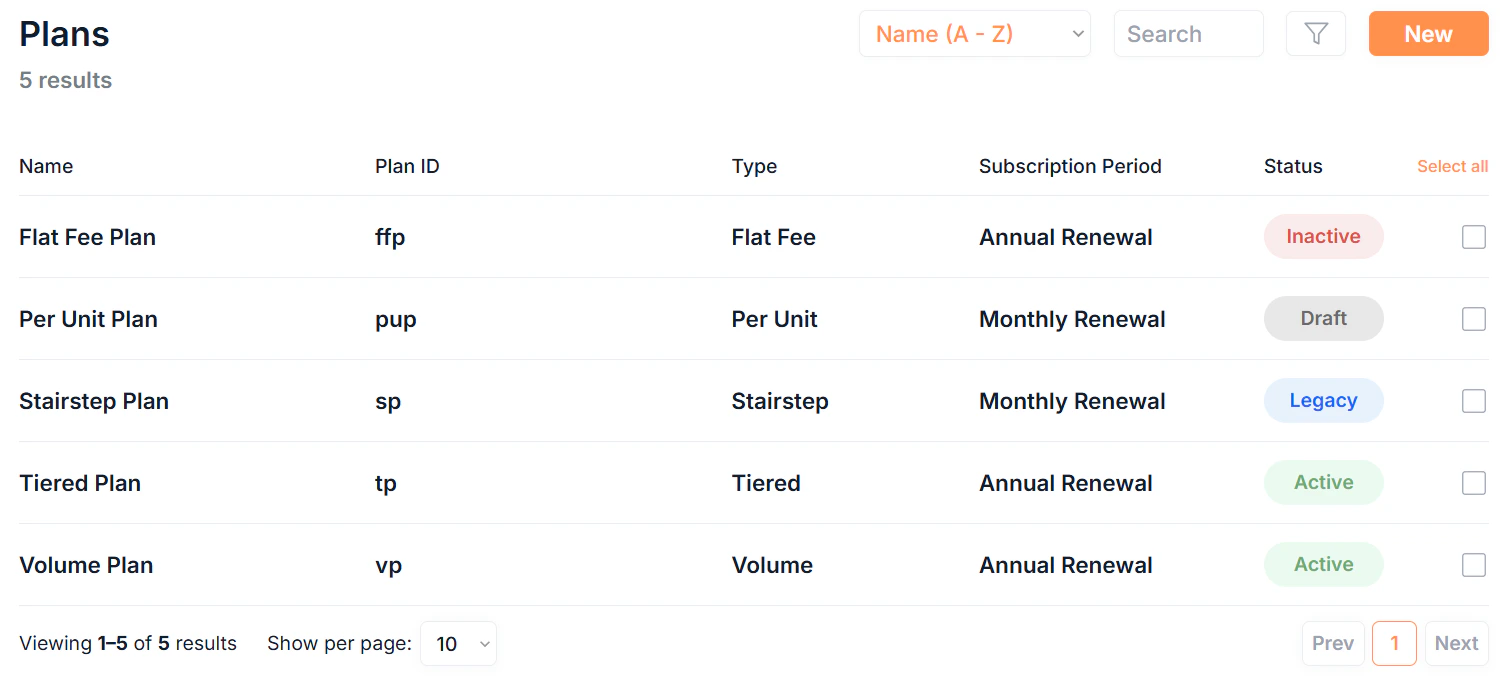
Click Plans in the sidebar to see all plans in your organisation.
### Filtering and searching
* **Search:** free text search across all plan fields
* **Sort:** order by Name or Date Created
* **Filter:** filter by Status, Plan Type, or Category
### What each row shows
Each plan row displays:
| Column | Description |
| :---------------------- | :------------------------------------------------------------------------------------------------------------------------------------- |
| **Name** | The display name of the plan. Click to open details. |
| **Plan ID** | The internal identifier. |
| **Type** | The pricing model of the plan. |
| **Subscription Period** | Monthly or Annual. |
| **Status** | Draft, Active, Legacy, or Inactive. |
Click any **Name** to open the plan's details page.
***
## Creating a plan
Click New in the top right to open the new plan form. Plan creation is a three or four step process depending on the plan type.
***
## The plans list
Click Plans in the sidebar to see all plans in your organisation.
### Filtering and searching
* **Search:** free text search across all plan fields
* **Sort:** order by Name or Date Created
* **Filter:** filter by Status, Plan Type, or Category
### What each row shows
Each plan row displays:
| Column | Description |
| :---------------------- | :------------------------------------------------------------------------------------------------------------------------------------- |
| **Name** | The display name of the plan. Click to open details. |
| **Plan ID** | The internal identifier. |
| **Type** | The pricing model of the plan. |
| **Subscription Period** | Monthly or Annual. |
| **Status** | Draft, Active, Legacy, or Inactive. |
Click any **Name** to open the plan's details page.
***
## Creating a plan
Click New in the top right to open the new plan form. Plan creation is a three or four step process depending on the plan type.
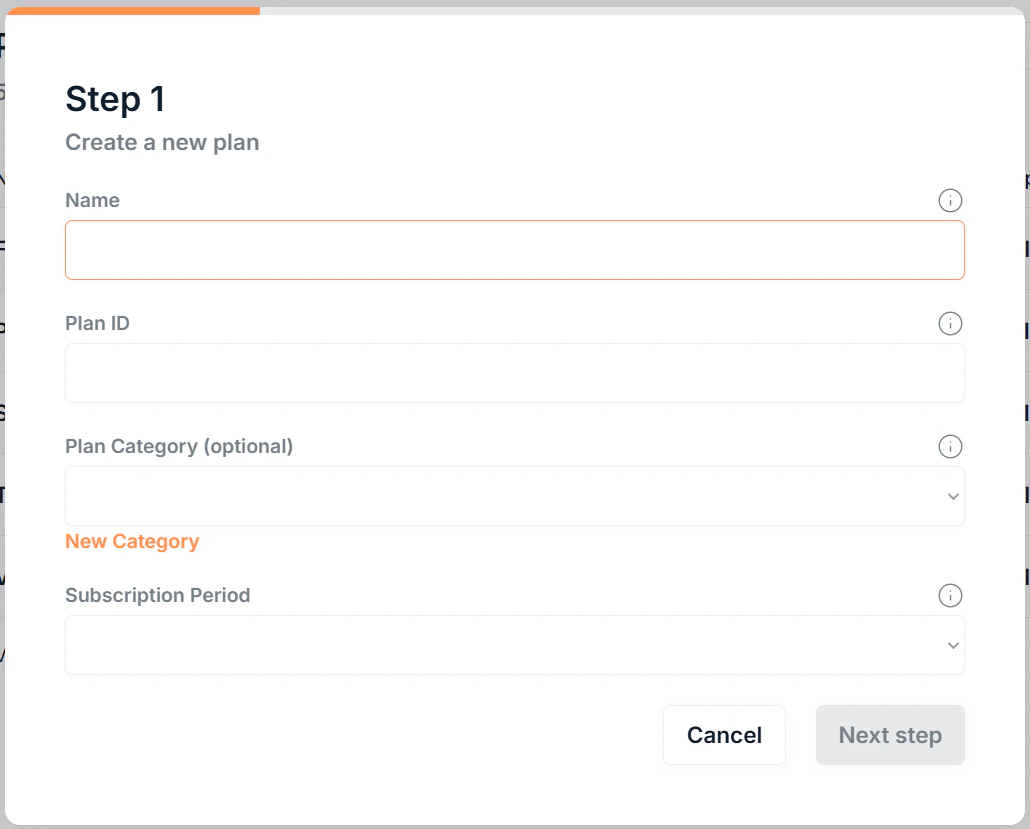 | Field | Description |
| :---------------------- | :-------------------------------------------------------------------------------------------------------------------------------- |
| **Name** | The customer-facing name of the plan. This appears as the line item on invoices. |
| **Plan ID** | An internal identifier for this plan. |
| **Plan Category** | Optional Grouping to organise similar plans. A new category can be created directly from this form. |
| **Subscription Period** | How frequently subscriptions on this plan will renew (Monthly or Annual). |
| **Status** | All plans are created as\*\* Draft\*\*. |
Click Next step to continue.
First, select the **currency** for this plan.
Then choose a **Plan Type**. This determines how the subscription amount is calculated at each renewal:
| Plan Type | How billing is calculated |
| :------------ | :--------------------------------------------------------------------------------------------- |
| **Flat Fee** | A single fixed price per period, regardless of units. |
| **Per Unit** | Price × number of units. Scales linearly. |
| **Tiered** | Units split into tiers, each tier priced separately, applied only to units in that band. |
| **Volume** | Total unit count determines a single per-unit rate applied to all units. |
| **Stairstep** | A fixed price per tier, customers pay the whole tier price based on which band they fall into. |
For Tiered, Volume, and Stairstep plans, leave the final tier's **To** blank to set the final open-ended upper limit.
Use **Price Preview** to enter a test unit count and verify your pricing structure calculates as expected.
Understand the different plan types with our example plans:
Click Next step to continue.
This step is not shown for **Flat Fee** plan types.
| Field | Description |
| :----------------------- | :---------------------------------------------------------------------------------------------------------------------------------------------- |
| **Unit Type (singular)** | What is being counted (e.g. Licence, User, Transaction.) This appears as the line item and in the item description on invoices. |
| **Unit Type (plural)** | The plural form (e.g. Licences, Users, Transactions). This appears as the line item and in the item description on invoices. |
| **Minimum Units** | The minimum unit count required for any subscription on this plan. Override at subscription level (must be greater) |
Click Next step to continue.
Map each revenue type to a Xero account code. This controls which account invoices post to based on whether the subscription is new, renewing, or expanding.
| Revenue type | When it applies |
| :--------------------------------- | :---------------------------------------------------------- |
| **New Subscriptions Revenue** | The first invoice on a new subscription |
| **Subscription Renewals Revenue** | Follow-on renewal invoices |
| **Subscription Expansion Revenue** | When a customer increases units on an existing subscription |
Leave any field blank to fall back to the company-level defaults set in [Company Settings](/settings/account).
Click Save to create the plan.
***
## Plan details
Click any plan's **Name** to open its details page. The details page is split into two sections:
**Plan details:** shows the name, plan ID, plan category, unit types (excluding Flat Fee), minimum units (excluding Flat Fee), subscription period, currency, and xero account mappings.
**Fee structure:** shows the plan type and pricing structure (full tier or unit pricing configuration).
| Field | Description |
| :---------------------- | :-------------------------------------------------------------------------------------------------------------------------------- |
| **Name** | The customer-facing name of the plan. This appears as the line item on invoices. |
| **Plan ID** | An internal identifier for this plan. |
| **Plan Category** | Optional Grouping to organise similar plans. A new category can be created directly from this form. |
| **Subscription Period** | How frequently subscriptions on this plan will renew (Monthly or Annual). |
| **Status** | All plans are created as\*\* Draft\*\*. |
Click Next step to continue.
First, select the **currency** for this plan.
Then choose a **Plan Type**. This determines how the subscription amount is calculated at each renewal:
| Plan Type | How billing is calculated |
| :------------ | :--------------------------------------------------------------------------------------------- |
| **Flat Fee** | A single fixed price per period, regardless of units. |
| **Per Unit** | Price × number of units. Scales linearly. |
| **Tiered** | Units split into tiers, each tier priced separately, applied only to units in that band. |
| **Volume** | Total unit count determines a single per-unit rate applied to all units. |
| **Stairstep** | A fixed price per tier, customers pay the whole tier price based on which band they fall into. |
For Tiered, Volume, and Stairstep plans, leave the final tier's **To** blank to set the final open-ended upper limit.
Use **Price Preview** to enter a test unit count and verify your pricing structure calculates as expected.
Understand the different plan types with our example plans:
Click Next step to continue.
This step is not shown for **Flat Fee** plan types.
| Field | Description |
| :----------------------- | :---------------------------------------------------------------------------------------------------------------------------------------------- |
| **Unit Type (singular)** | What is being counted (e.g. Licence, User, Transaction.) This appears as the line item and in the item description on invoices. |
| **Unit Type (plural)** | The plural form (e.g. Licences, Users, Transactions). This appears as the line item and in the item description on invoices. |
| **Minimum Units** | The minimum unit count required for any subscription on this plan. Override at subscription level (must be greater) |
Click Next step to continue.
Map each revenue type to a Xero account code. This controls which account invoices post to based on whether the subscription is new, renewing, or expanding.
| Revenue type | When it applies |
| :--------------------------------- | :---------------------------------------------------------- |
| **New Subscriptions Revenue** | The first invoice on a new subscription |
| **Subscription Renewals Revenue** | Follow-on renewal invoices |
| **Subscription Expansion Revenue** | When a customer increases units on an existing subscription |
Leave any field blank to fall back to the company-level defaults set in [Company Settings](/settings/account).
Click Save to create the plan.
***
## Plan details
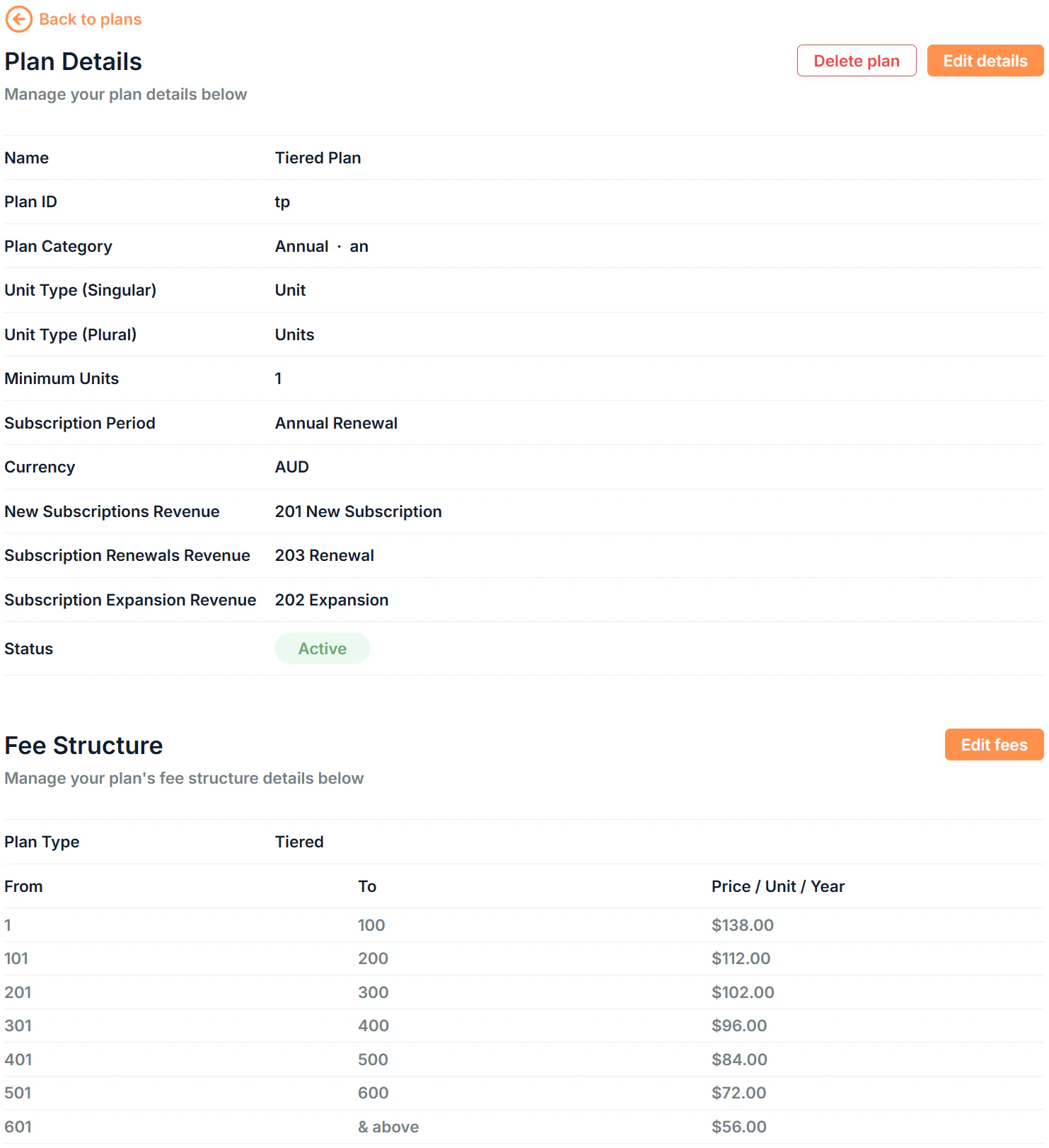
Click any plan's **Name** to open its details page. The details page is split into two sections:
**Plan details:** shows the name, plan ID, plan category, unit types (excluding Flat Fee), minimum units (excluding Flat Fee), subscription period, currency, and xero account mappings.
**Fee structure:** shows the plan type and pricing structure (full tier or unit pricing configuration).
 ***
## Plan statuses
| Status | What it means |
| --------------------------------------------- | ---------------------------------------------------------------- |
| Draft | Created but not yet used in any subscription |
| Active | In use and available for new subscriptions |
| Legacy | In use on existing subscriptions but cannot be added to new ones |
| Inactive | Not in use and unavailable for new subscriptions |
Set a plan to **Legacy** when you want to keep existing subscriptions running on it but stop new ones being created. Set it to **Inactive** to retire it without deleting it. Plans already attached to active subscriptions can only be set to \*\*Active \*\*or **Legacy**.
***
## Editing a plan
Plans have two separate edit forms depending on what you need to change.
### Editing plan details
Click Edit details on the plan details page to update:
* Name
* Plan ID
* Plan Category
* Status
* Unit Types (singular or plural)
* Minimum Units
Click **View Advanced Settings** to update:
* Subscription Period
* Currency
* Xero account mappings
### Editing the fee structure
Click Edit fees to update the pricing configuration.
If a plan has ever been used in a subscription, even a deleted one, its fee structure cannot be edited. If you need different pricing, create a new plan.
***
## Bulk actions
Select multiple plans in the list by clicking the of each plan to:
* **Bulk Edit:** update the name, category, unit type, or status across multiple plans at once
* **Bulk Delete:** permanently remove multiple plans (requires confirmation)
When bulk editing, leave a field blank to leave that value unchanged for the selected plans.
Plans with active subscriptions cannot be deleted. Set them to Legacy or Inactive instead.
***
## Deleting a plan
From the plan's details page, click Delete plan to remove it. A confirmation dialog appears before the action completes.
***
## Plan statuses
| Status | What it means |
| --------------------------------------------- | ---------------------------------------------------------------- |
| Draft | Created but not yet used in any subscription |
| Active | In use and available for new subscriptions |
| Legacy | In use on existing subscriptions but cannot be added to new ones |
| Inactive | Not in use and unavailable for new subscriptions |
Set a plan to **Legacy** when you want to keep existing subscriptions running on it but stop new ones being created. Set it to **Inactive** to retire it without deleting it. Plans already attached to active subscriptions can only be set to \*\*Active \*\*or **Legacy**.
***
## Editing a plan
Plans have two separate edit forms depending on what you need to change.
### Editing plan details
Click Edit details on the plan details page to update:
* Name
* Plan ID
* Plan Category
* Status
* Unit Types (singular or plural)
* Minimum Units
Click **View Advanced Settings** to update:
* Subscription Period
* Currency
* Xero account mappings
### Editing the fee structure
Click Edit fees to update the pricing configuration.
If a plan has ever been used in a subscription, even a deleted one, its fee structure cannot be edited. If you need different pricing, create a new plan.
***
## Bulk actions
Select multiple plans in the list by clicking the of each plan to:
* **Bulk Edit:** update the name, category, unit type, or status across multiple plans at once
* **Bulk Delete:** permanently remove multiple plans (requires confirmation)
When bulk editing, leave a field blank to leave that value unchanged for the selected plans.
Plans with active subscriptions cannot be deleted. Set them to Legacy or Inactive instead.
***
## Deleting a plan
From the plan's details page, click Delete plan to remove it. A confirmation dialog appears before the action completes.