> ## Documentation Index
> Fetch the complete documentation index at: https://docs.saasybill.com/llms.txt
> Use this file to discover all available pages before exploring further.
# Account Settings
> Manage your profile, company settings, billing, integrations, and account security
Access your account settings by clicking your **profile icon** in the top-right corner and selecting My Account.
The Account page is organised into five sections, each covering a different aspect of your Saasybill configuration.
***
## Account
Your account shows the summary-level details populated from your Xero connection. The status of your connection is shown in the top-right corner.
| Field | Description |
| ---------------- | ---------------------------------------------- |
| **First Name** | Your first name |
| **Last Name** | Your last name |
| **Email** | The email address associated with your account |
| **Company Name** | Your organisation name as it appears in Xero |
***
## Company settings
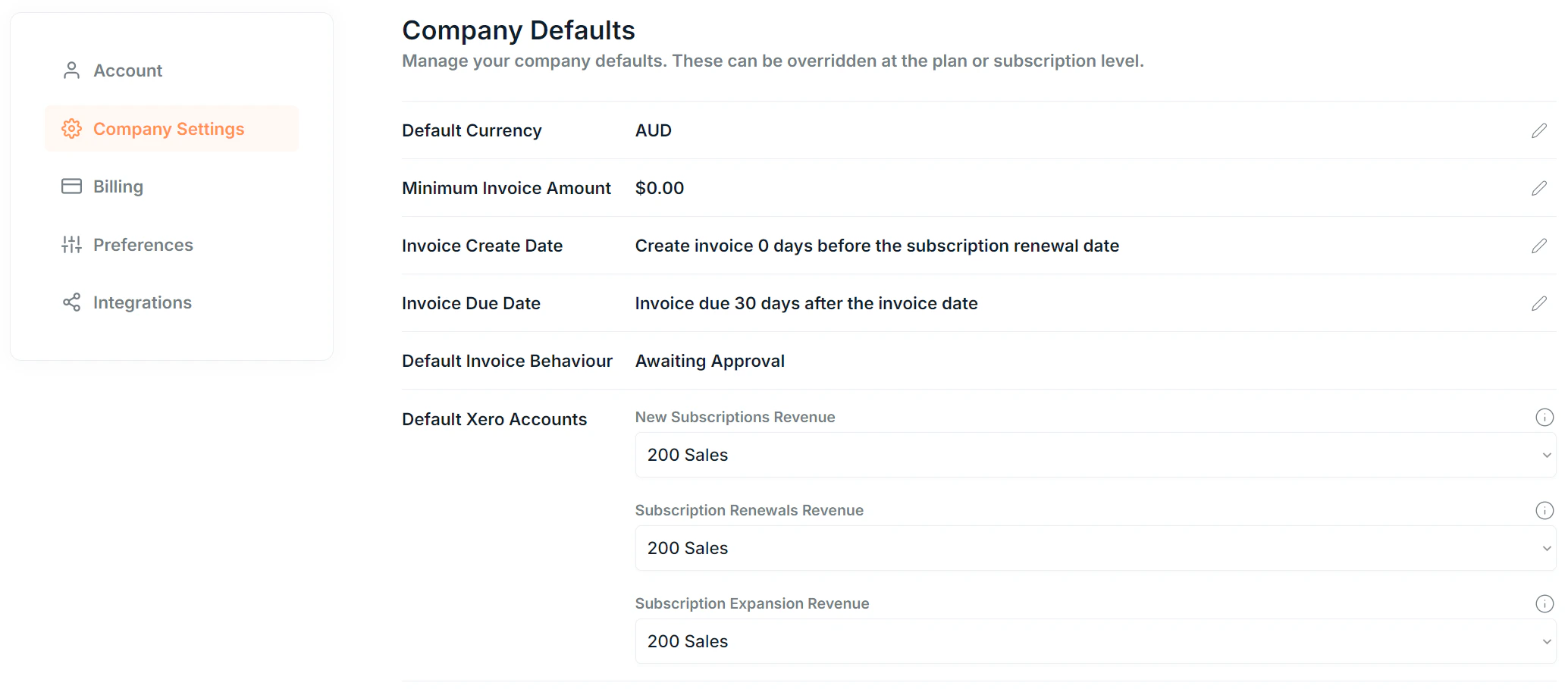
Company Settings define the default billing behaviours for your organisation in Saasybill. Most of these can be overridden at the plan or subscription level.
 ### Billing defaults
| Setting | What it controls |
| ----------------------------- | ---------------------------------------------------------------------------------------------------------------------------------------------------------------------------------------------------------------------------------- |
| **Default Currency** | Your base billing currency, set from your Xero organisation during signup. Cannot be changed after setup. Override at plan level |
| **Minimum Invoice Amount** | The minimum pre-tax amount an invoice must reach before it moves from Draft to Awaiting Approval in Xero. Lets smaller line items accumulate before an invoice is sent. Override at subscription level |
| **Invoice Create Date** | How many days before the renewal date an invoice is created. Set to `0` to create it on the renewal date itself. Applies to annual subscriptions only. |
| **Invoice Due Date** | The default number of days after the invoice date that payment becomes due. Override at subscription level |
| **Default Invoice Behaviour** | Defaults to Awaiting Approval. Contact Saasybill to switch to Approved, which automatically approves and sends invoices once they clear the minimum amount threshold. |
| **Smart Invoice Approval** | Recommended Invoices are set to Approved in Xero when there are available credit notes on the subscription. Ensures credits are applied automatically. |
### Default Xero account mappings
These are the default Xero account codes used for assigning different revenue types. Override at plan level
| Revenue type | When it applies |
| ---------------------------------- | ----------------------------------------------------------- |
| **New Subscriptions Revenue** | The first invoice on a new subscription |
| **Subscription Renewals Revenue** | Follow-on renewal invoices |
| **Subscription Expansion Revenue** | When a customer increases units on an existing subscription |
These defaults apply across all plans unless overridden. You can set per-plan account codes in the plan creation and edit flows. See [Plans](/product-catalogue/plans-catalogue) for details.
### Setup Mode
Setup Mode lets you create subscriptions without creating invoices in Xero. Use this when first connecting Saasybill to mirror your existing billing state before going live.
When you're ready to start billing, exit Setup Mode, and subscriptions will begin generating invoices in Xero from that point forward.
Exiting Setup Mode is a one-way action. Once exited, invoices will begin generating automatically on your subscription updates and renewals.
### Currencies
Saasybill's currency support mirrors your Xero organisation's configuration.
**If multi-currency is enabled in Xero:** Saasybill can create invoices in any supported currency. Plans can be priced in different currencies.
**If multi-currency is not enabled in Xero:** Saasybill can only create invoices in your Xero base currency. Subscriptions on plans using other currencies will not generate invoices in Xero, though they are still created in Saasybill.
Saasybill displays warning prompts throughout the app wherever your multi-currency configuration may affect billing.
**Supported currencies:** AUD, CAD, CNY, EUR, GBP, INR, JPY, NZD, USD. [Contact us](https://saasybill.com/contact) to request support for additional currencies.
***
## Billing
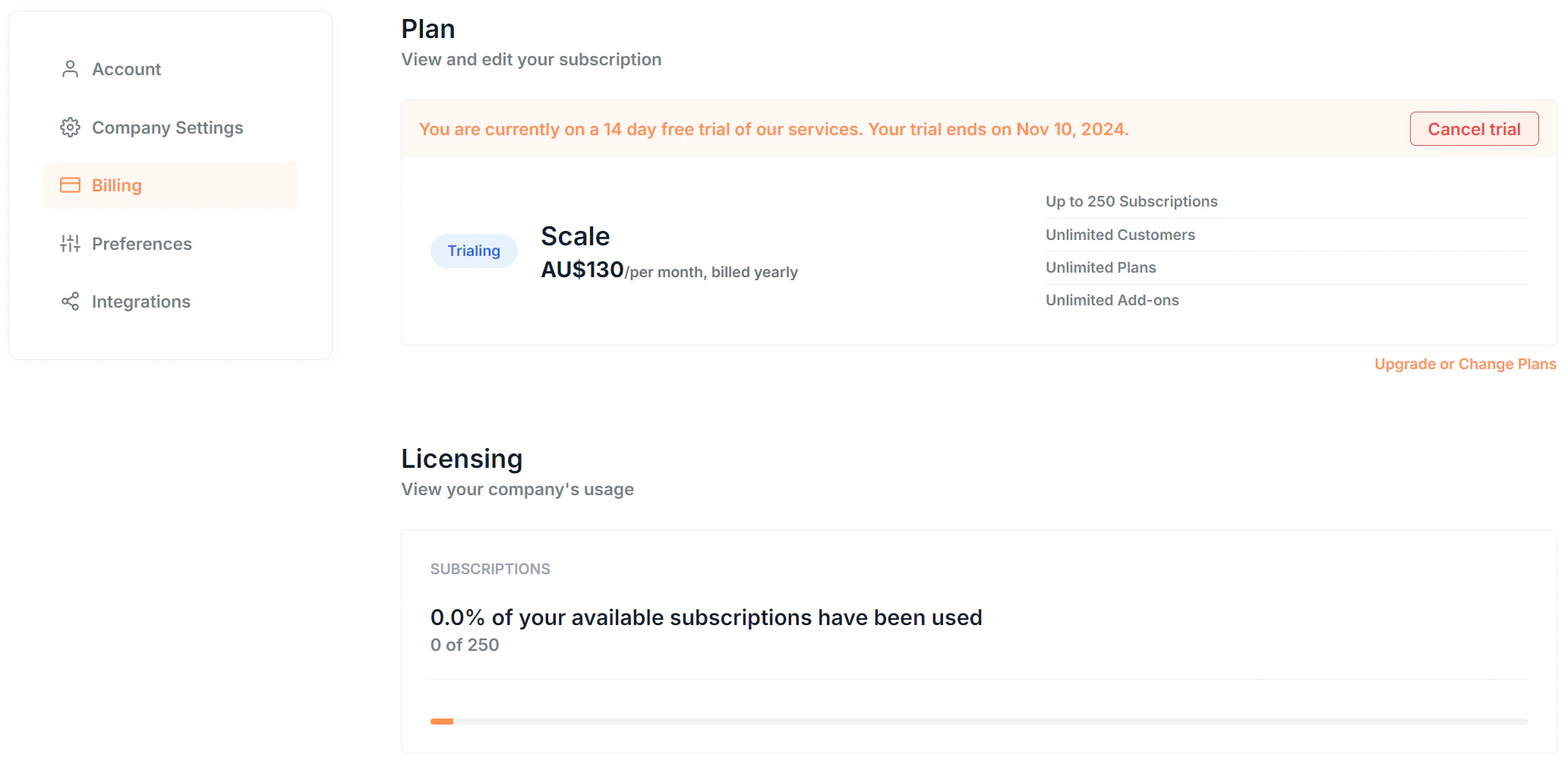
The Billing section shows your Saasybill account subscription: what plan you're on, how much of your allowance you've used, and how to manage your payment details.
### Billing defaults
| Setting | What it controls |
| ----------------------------- | ---------------------------------------------------------------------------------------------------------------------------------------------------------------------------------------------------------------------------------- |
| **Default Currency** | Your base billing currency, set from your Xero organisation during signup. Cannot be changed after setup. Override at plan level |
| **Minimum Invoice Amount** | The minimum pre-tax amount an invoice must reach before it moves from Draft to Awaiting Approval in Xero. Lets smaller line items accumulate before an invoice is sent. Override at subscription level |
| **Invoice Create Date** | How many days before the renewal date an invoice is created. Set to `0` to create it on the renewal date itself. Applies to annual subscriptions only. |
| **Invoice Due Date** | The default number of days after the invoice date that payment becomes due. Override at subscription level |
| **Default Invoice Behaviour** | Defaults to Awaiting Approval. Contact Saasybill to switch to Approved, which automatically approves and sends invoices once they clear the minimum amount threshold. |
| **Smart Invoice Approval** | Recommended Invoices are set to Approved in Xero when there are available credit notes on the subscription. Ensures credits are applied automatically. |
### Default Xero account mappings
These are the default Xero account codes used for assigning different revenue types. Override at plan level
| Revenue type | When it applies |
| ---------------------------------- | ----------------------------------------------------------- |
| **New Subscriptions Revenue** | The first invoice on a new subscription |
| **Subscription Renewals Revenue** | Follow-on renewal invoices |
| **Subscription Expansion Revenue** | When a customer increases units on an existing subscription |
These defaults apply across all plans unless overridden. You can set per-plan account codes in the plan creation and edit flows. See [Plans](/product-catalogue/plans-catalogue) for details.
### Setup Mode
Setup Mode lets you create subscriptions without creating invoices in Xero. Use this when first connecting Saasybill to mirror your existing billing state before going live.
When you're ready to start billing, exit Setup Mode, and subscriptions will begin generating invoices in Xero from that point forward.
Exiting Setup Mode is a one-way action. Once exited, invoices will begin generating automatically on your subscription updates and renewals.
### Currencies
Saasybill's currency support mirrors your Xero organisation's configuration.
**If multi-currency is enabled in Xero:** Saasybill can create invoices in any supported currency. Plans can be priced in different currencies.
**If multi-currency is not enabled in Xero:** Saasybill can only create invoices in your Xero base currency. Subscriptions on plans using other currencies will not generate invoices in Xero, though they are still created in Saasybill.
Saasybill displays warning prompts throughout the app wherever your multi-currency configuration may affect billing.
**Supported currencies:** AUD, CAD, CNY, EUR, GBP, INR, JPY, NZD, USD. [Contact us](https://saasybill.com/contact) to request support for additional currencies.
***
## Billing
The Billing section shows your Saasybill account subscription: what plan you're on, how much of your allowance you've used, and how to manage your payment details.
 | Section | Content |
| ------------------ | ---------------------------------------------------------------------------------------------------------------- |
| **Plan** | Your current Saasybill subscription tier. From here you can upgrade or change your plan. |
| **Licensing** | Your usage against the plan's limits. |
| **Billing portal** | Visit the billing portal to update your payment method or billing information, and view past Saasybill invoices. |
The Billing Portal does not apply to Xero App Store signups. If you signed up through the Xero App Store, your Saasybill billing is managed there directly.
***
## Preferences
The Preferences section lets you personalise your Saasybill experience, including notification settings and display options.
***
## Integrations
The Integrations section shows the details and current status of your Xero connection.
| Section | Content |
| ------------------ | ---------------------------------------------------------------------------------------------------------------- |
| **Plan** | Your current Saasybill subscription tier. From here you can upgrade or change your plan. |
| **Licensing** | Your usage against the plan's limits. |
| **Billing portal** | Visit the billing portal to update your payment method or billing information, and view past Saasybill invoices. |
The Billing Portal does not apply to Xero App Store signups. If you signed up through the Xero App Store, your Saasybill billing is managed there directly.
***
## Preferences
The Preferences section lets you personalise your Saasybill experience, including notification settings and display options.
***
## Integrations
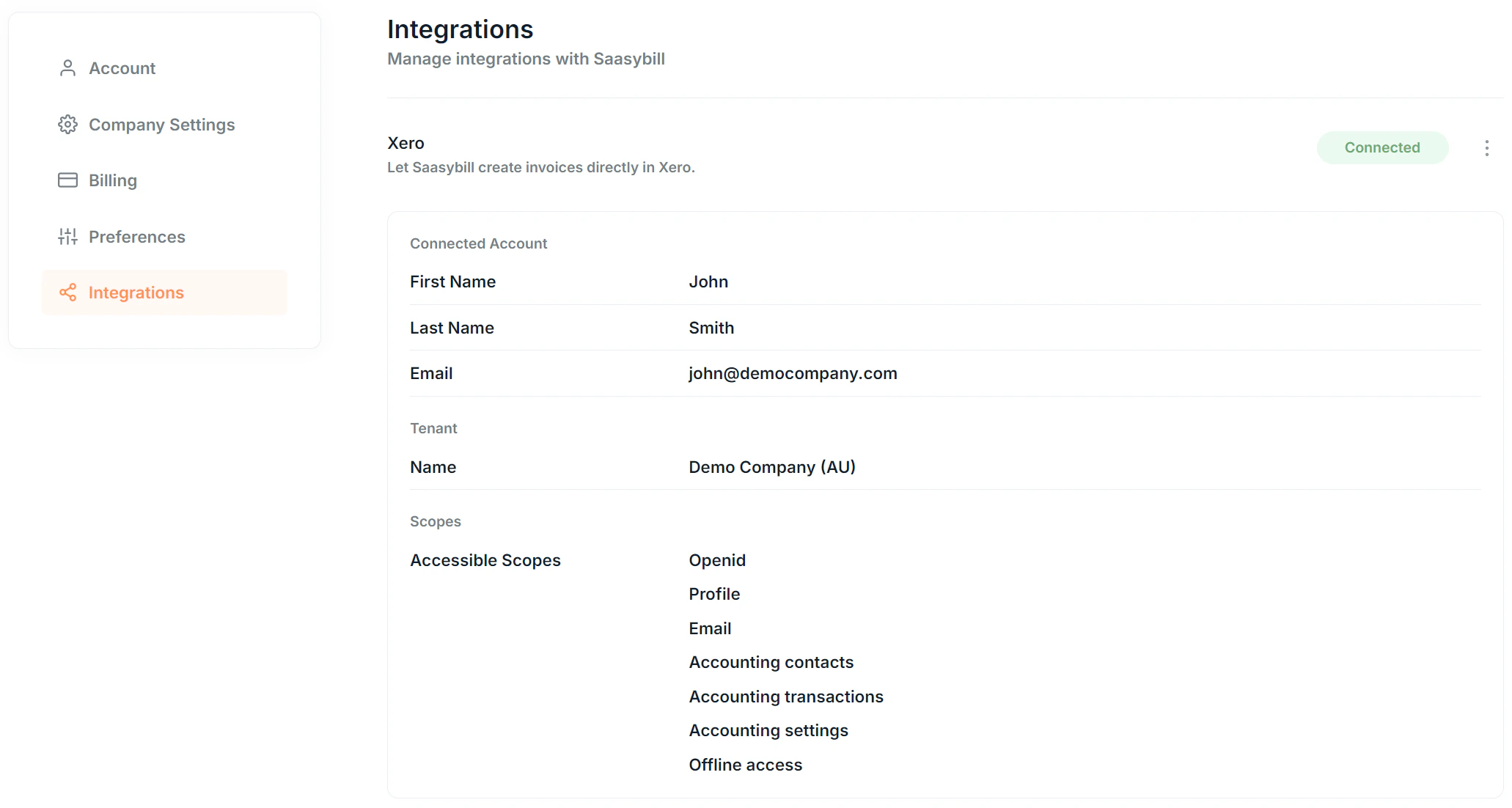
The Integrations section shows the details and current status of your Xero connection.
 ### Xero connection details
| Field | Description |
| --------------------- | ---------------------------------------------------- |
| **Connected Account** | The Xero user account associated with the connection |
| **Tenant** | Your connected Xero organisation |
| **Scopes** | The Xero data Saasybill has access to |
### Reconnecting Xero
If your connection becomes disconnected, a **Reconnect** button appears automatically on this section. Click it to re-authenticate with Xero and restore the integration.
### Removing the Xero connection
You can remove your Xero connection from this section. Because Saasybill requires an active Xero connection to operate, removing the connection initiates the account deletion process.
Removing your Xero connection triggers account deletion. See below for what this involves.
***
## Deleting your account
To delete your account, click Delete Account from the Account page.
A confirmation form appears before anything is deleted. We strongly recommend **downloading** a copy of your **invoices** and **subscriptions** using the download buttons in the form before proceeding.
To confirm deletion, type the exact phrase shown in the form. Once confirmed:
* A **confirmation email** is sent immediately
* All data is **scheduled for permanent deletion 7 days later**
* A **final confirmation email** is sent once deletion is complete
**Cancel deletion** by [logging in](https://app.saasybill.com/login) to Saasybill anytime before your 7-day deletion date.
Removing your Xero connection from the Integrations section also triggers this same deletion process, since Saasybill cannot operate without an active Xero connection.
### Xero connection details
| Field | Description |
| --------------------- | ---------------------------------------------------- |
| **Connected Account** | The Xero user account associated with the connection |
| **Tenant** | Your connected Xero organisation |
| **Scopes** | The Xero data Saasybill has access to |
### Reconnecting Xero
If your connection becomes disconnected, a **Reconnect** button appears automatically on this section. Click it to re-authenticate with Xero and restore the integration.
### Removing the Xero connection
You can remove your Xero connection from this section. Because Saasybill requires an active Xero connection to operate, removing the connection initiates the account deletion process.
Removing your Xero connection triggers account deletion. See below for what this involves.
***
## Deleting your account
To delete your account, click Delete Account from the Account page.
A confirmation form appears before anything is deleted. We strongly recommend **downloading** a copy of your **invoices** and **subscriptions** using the download buttons in the form before proceeding.
To confirm deletion, type the exact phrase shown in the form. Once confirmed:
* A **confirmation email** is sent immediately
* All data is **scheduled for permanent deletion 7 days later**
* A **final confirmation email** is sent once deletion is complete
**Cancel deletion** by [logging in](https://app.saasybill.com/login) to Saasybill anytime before your 7-day deletion date.
Removing your Xero connection from the Integrations section also triggers this same deletion process, since Saasybill cannot operate without an active Xero connection.