

How customers get into Saasybill
Saasybill does not have its own customer creation form. Customers come from Xero. When you create a new contact in Xero, it automatically syncs across to Saasybill and appears in the Customers list. This keeps your customer data in one place.If you believe a customer should be in Saasybill when it’s not, ensure it’s not in the Possible Customers list and not a supplier in Xero. Then, search the customer in the Saasybill customers list and click Click here to sync manually.
The customer list
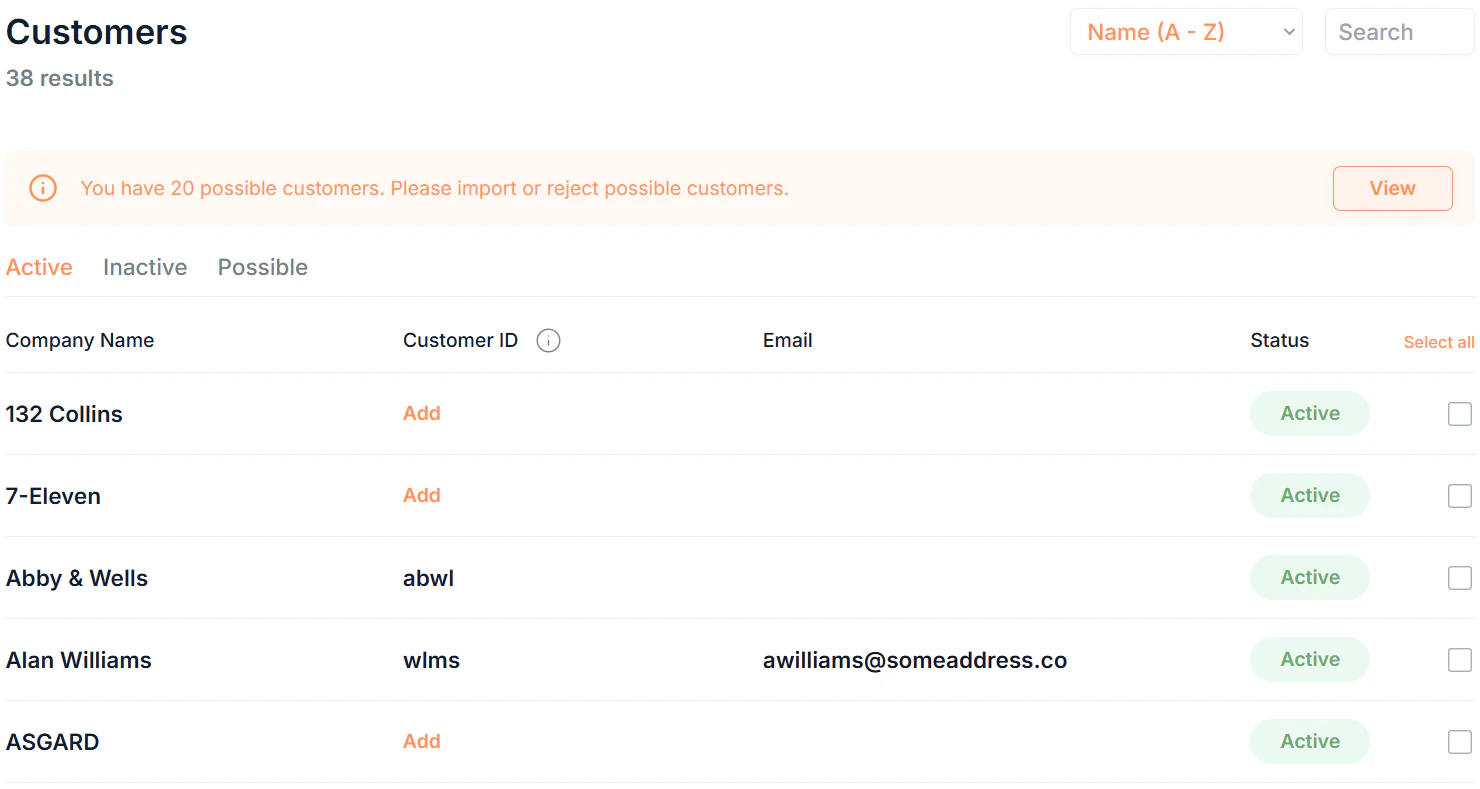
Click Customers in the sidebar to see all customers in your organisation.open the list. Use the tabs at the top to filter by status, and the sort and search tools to find specific customers.Tabs
Filter the list by status using the tabs at the top:Rejected customers are shown at the bottom of the list in the Possible Customers tab.
Filtering and searching
- Search: free text search across all customer fields
- Sort: order by Name or Date Created
Customer statuses
Possible customers
When Saasybill syncs with Xero, it cannot always determine automatically whether a contact is a customer. These contacts go in the Possible tab for you to review. For each possible customer you can:- Import: moves the contact to the Active customers list, where it can be added to new subscriptions
- Reject: moves the contact to the Rejected list

Customer details
Click any Active or Inactive customer’s Name to open its details page. The details page is split into two sections.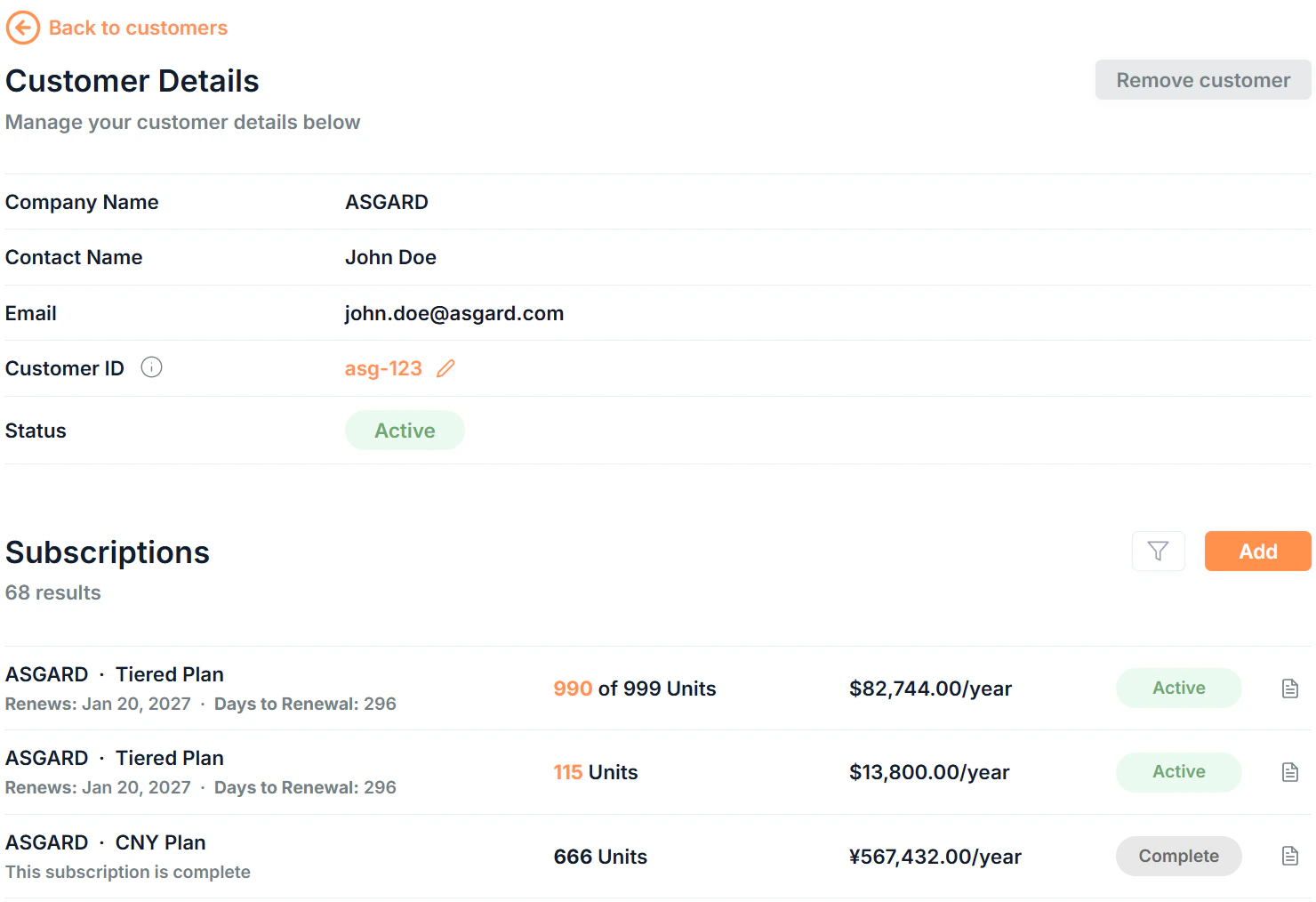
Customer details
Subscriptions
This section shows all subscriptions for this customer. This subscriptions list has all the same functionality as the main Subscriptions page, including updating subscriptions and viewing subscription history. Click any subscription’s Name to go to the associated details page. Click Add to create a new subscription for the current customerEditing a customer
To edit most customer details, update them in Xero and the updates will automatically sync with Saasybill. The Customer ID is synced with Xero, but can only be added and updated in Saasybill. Click Add to add a customer ID.Bulk actions
Select multiple customers in the list by clicking the of each customer to:- Bulk Remove: move multiple customers to the Rejected list (requires confirmation)