

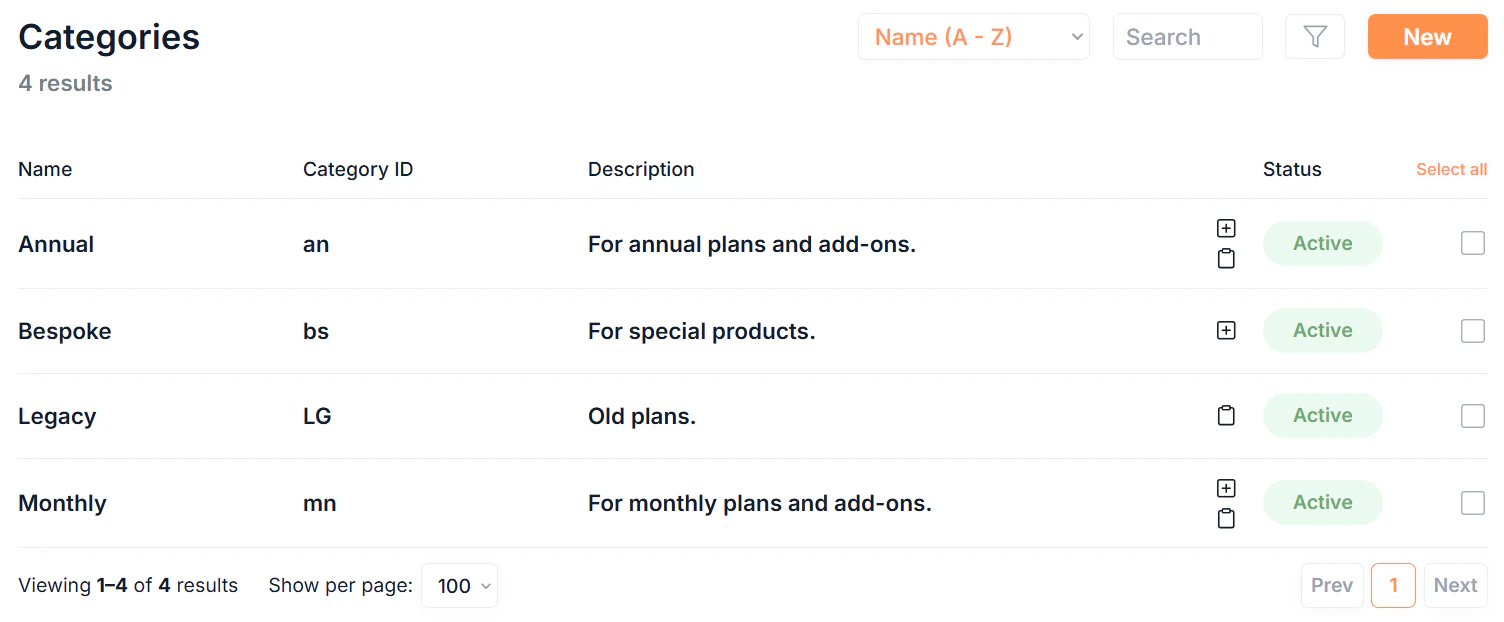
The categories list
Click Categories in the sidebar to see all categories in your organisation. Each row in the list displays:Creating a category
Click New in the top right to open the new category form. You can also create a category directly from the new plan, add-on, or charge forms by clicking the New Category option.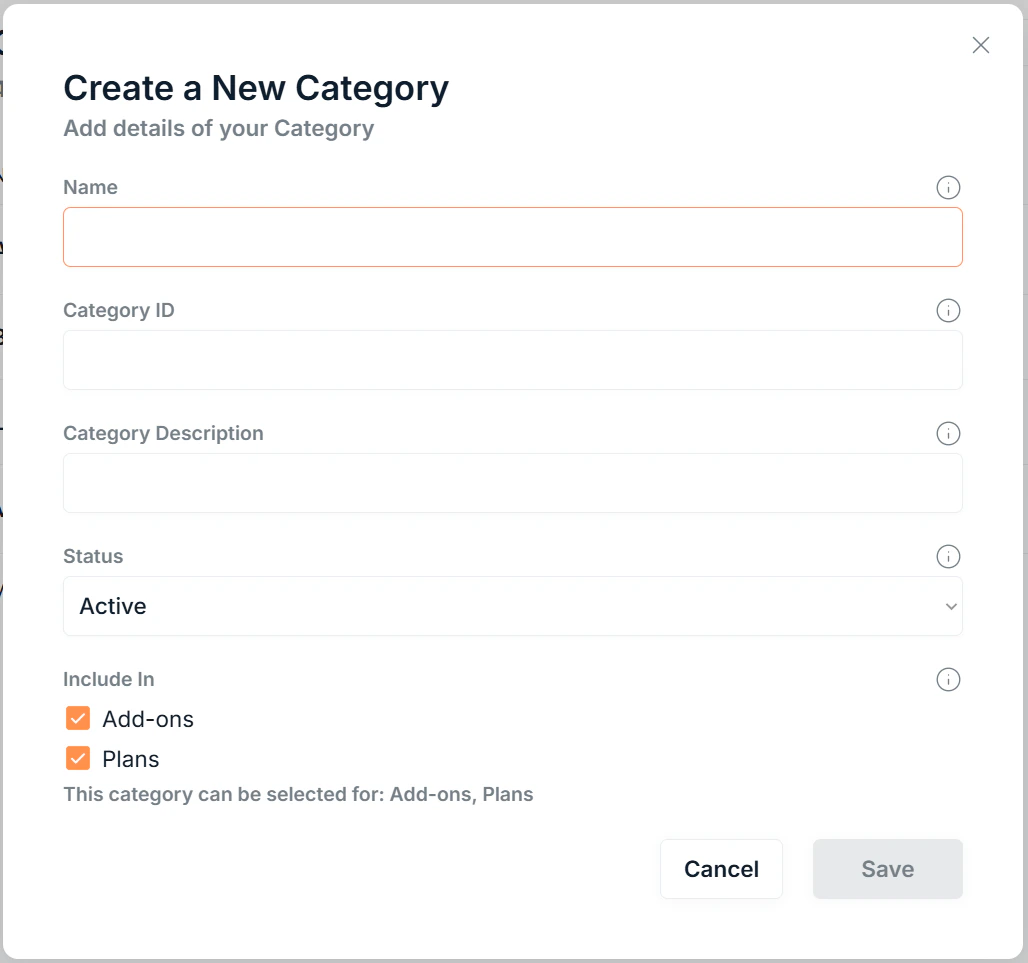
Fields
The Include In setting determines which product types the category is available for. A category set to Plans only will not appear as a filter option in Add-ons or Charges, and vice versa.
Click Save to create the category.
Editing a category
Select any category from the table by clicking the . Then click the icon to update the category details. Any field can be edited after creation.Deleting a category
Select any category from the table by clicking the . Then click the icon. A confirmation dialog appears before the deletion completes.Bulk actions
Select multiple categories in the list by clicking the of each category to:- Bulk Edit: update the name, description, or status across multiple categories at once
- Bulk Delete: permanently remove multiple categories (requires confirmation)
When bulk editing, leave a field blank to leave that value unchanged for the selected categories.
Where categories appear
Once created, categories surface as filter and grouping options across the app:- Plans list: filter by category to narrow the plans shown
- Add-ons list: filter by category to narrow the add-ons shown
- Charges list: filter by category to narrow the charges shown