

Account
Your account shows the summary-level details populated from your Xero connection. The status of your connection is shown in the top-right corner.Company settings
Company Settings define the default billing behaviours for your organisation in Saasybill. Most of these can be overridden at the plan or subscription level.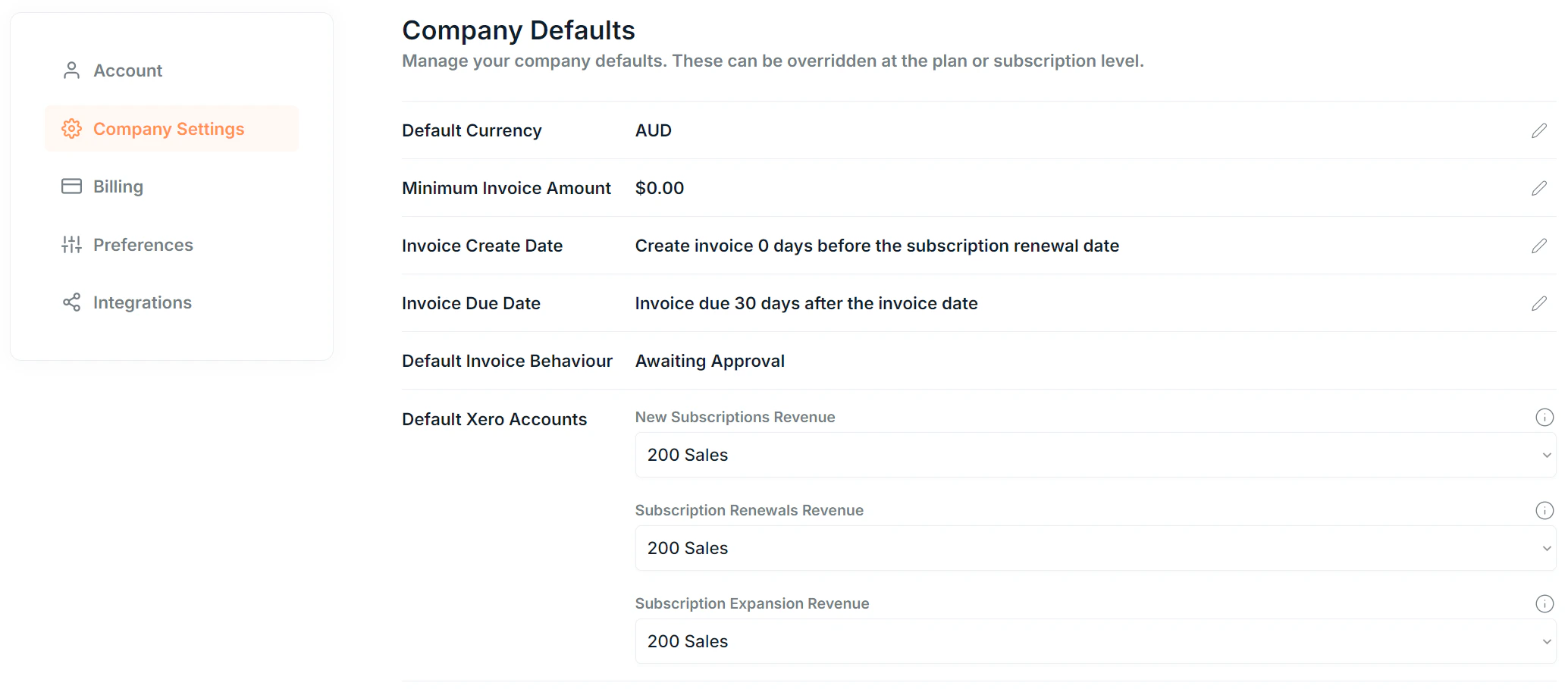
Billing defaults
Default Xero account mappings
These are the default Xero account codes used for assigning different revenue types. Override at plan levelThese defaults apply across all plans unless overridden. You can set per-plan account codes in the plan creation and edit flows. See Plans for details.
Setup Mode
Setup Mode lets you create subscriptions without creating invoices in Xero. Use this when first connecting Saasybill to mirror your existing billing state before going live. When you’re ready to start billing, exit Setup Mode, and subscriptions will begin generating invoices in Xero from that point forward.Currencies
Saasybill’s currency support mirrors your Xero organisation’s configuration. If multi-currency is enabled in Xero: Saasybill can create invoices in any supported currency. Plans can be priced in different currencies. If multi-currency is not enabled in Xero: Saasybill can only create invoices in your Xero base currency. Subscriptions on plans using other currencies will not generate invoices in Xero, though they are still created in Saasybill. Saasybill displays warning prompts throughout the app wherever your multi-currency configuration may affect billing. Supported currencies: AUD, CAD, CNY, EUR, GBP, INR, JPY, NZD, USD. Contact us to request support for additional currencies.Billing
The Billing section shows your Saasybill account subscription: what plan you’re on, how much of your allowance you’ve used, and how to manage your payment details.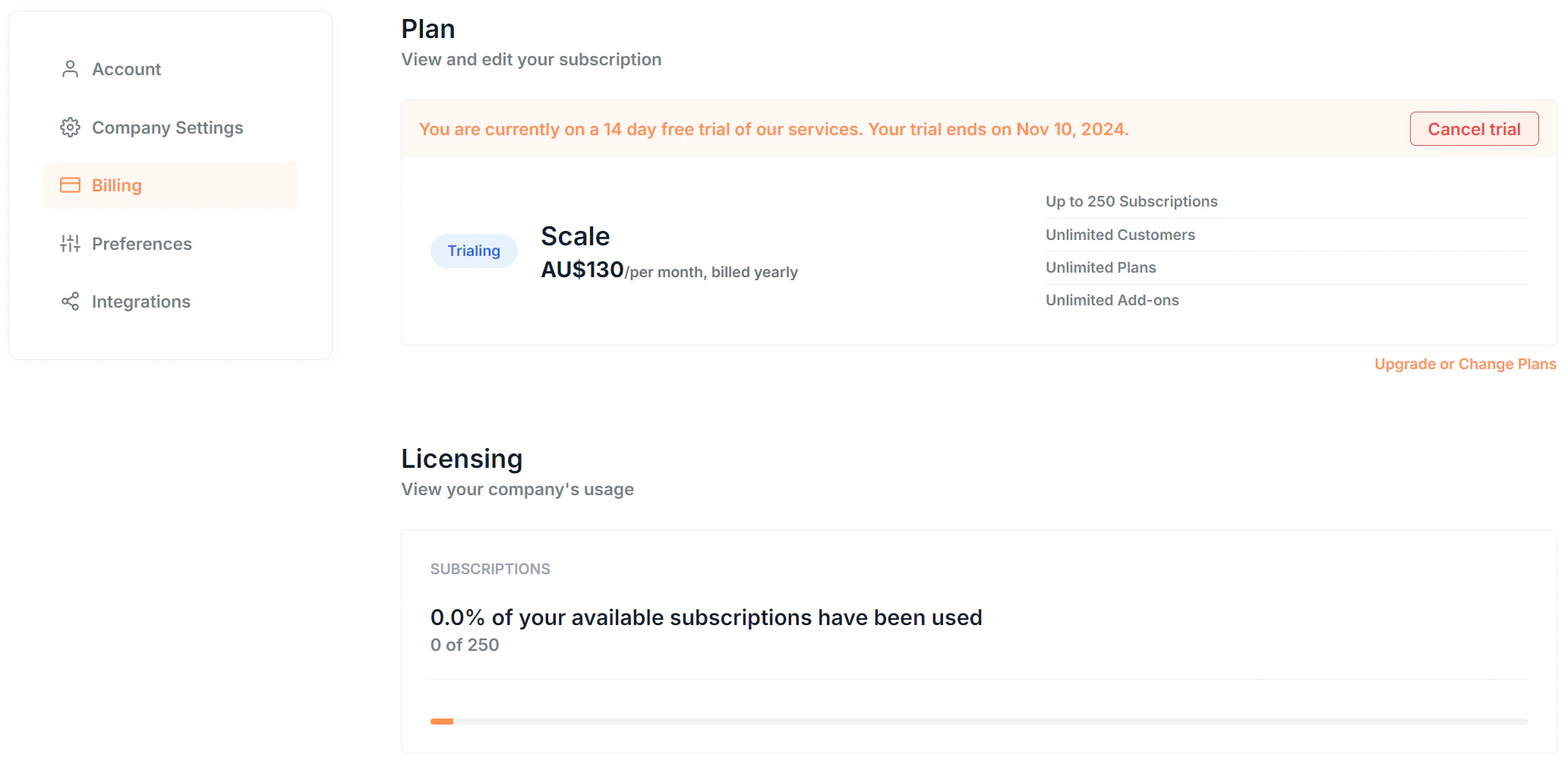
The Billing Portal does not apply to Xero App Store signups. If you signed up through the Xero App Store, your Saasybill billing is managed there directly.
Preferences
The Preferences section lets you personalise your Saasybill experience, including notification settings and display options.Integrations
The Integrations section shows the details and current status of your Xero connection.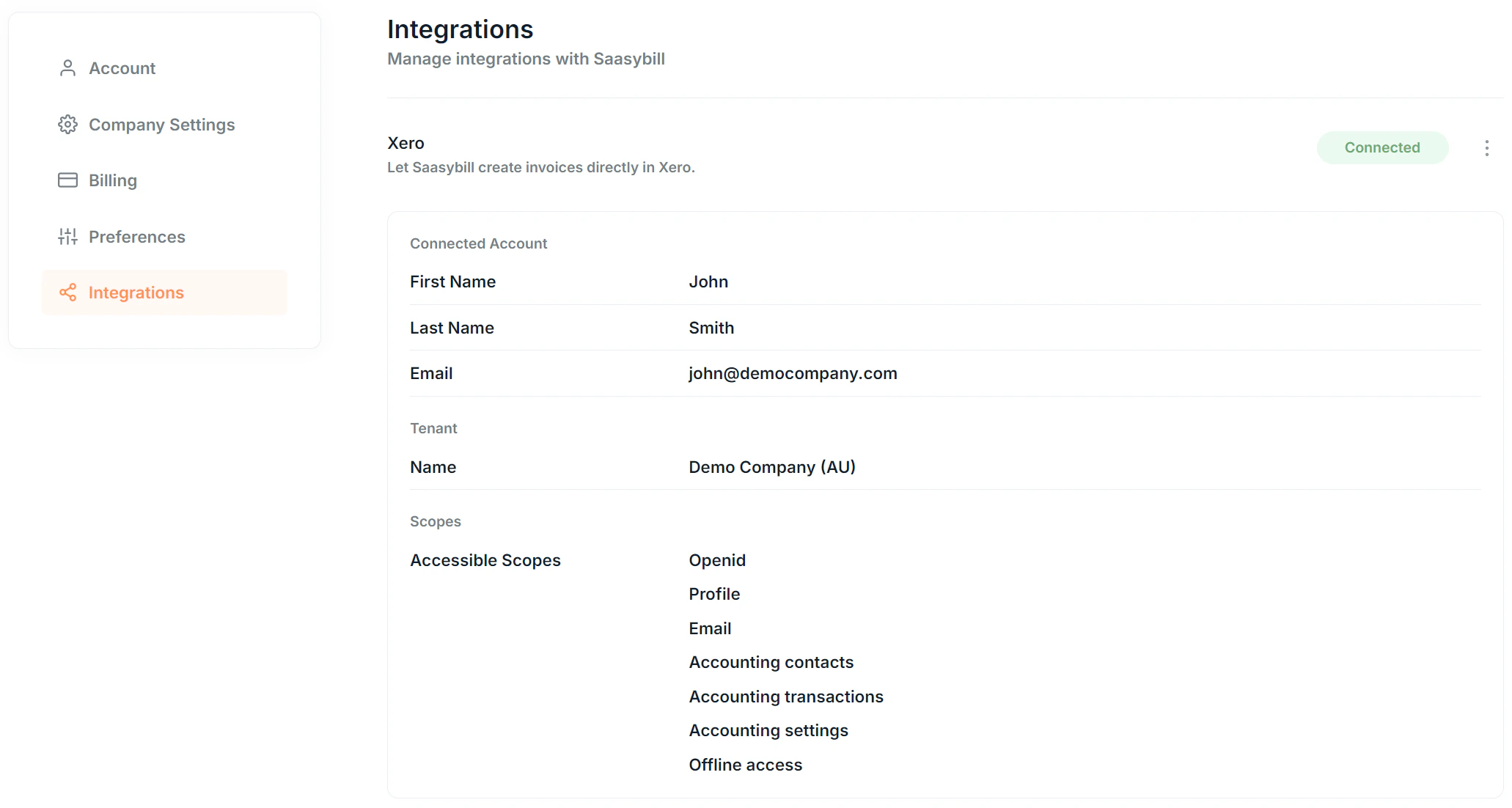
Xero connection details
Reconnecting Xero
If your connection becomes disconnected, a Reconnect button appears automatically on this section. Click it to re-authenticate with Xero and restore the integration.Removing the Xero connection
You can remove your Xero connection from this section. Because Saasybill requires an active Xero connection to operate, removing the connection initiates the account deletion process.Deleting your account
To delete your account, click Delete Account from the Account page. A confirmation form appears before anything is deleted. We strongly recommend downloading a copy of your invoices and subscriptions using the download buttons in the form before proceeding. To confirm deletion, type the exact phrase shown in the form. Once confirmed:- A confirmation email is sent immediately
- All data is scheduled for permanent deletion 7 days later
- A final confirmation email is sent once deletion is complete
Cancel deletion by logging in to Saasybill anytime before your 7-day deletion date.
Removing your Xero connection from the Integrations section also triggers this same deletion process, since Saasybill cannot operate without an active Xero connection.