

This page covers how to manage charges in the app. For a conceptual explanation of how charges relate to subscriptions and billing, see How Saasybill works.
Charges are one-time billing items. For recurring optional items billed at every renewal, see Add-ons.
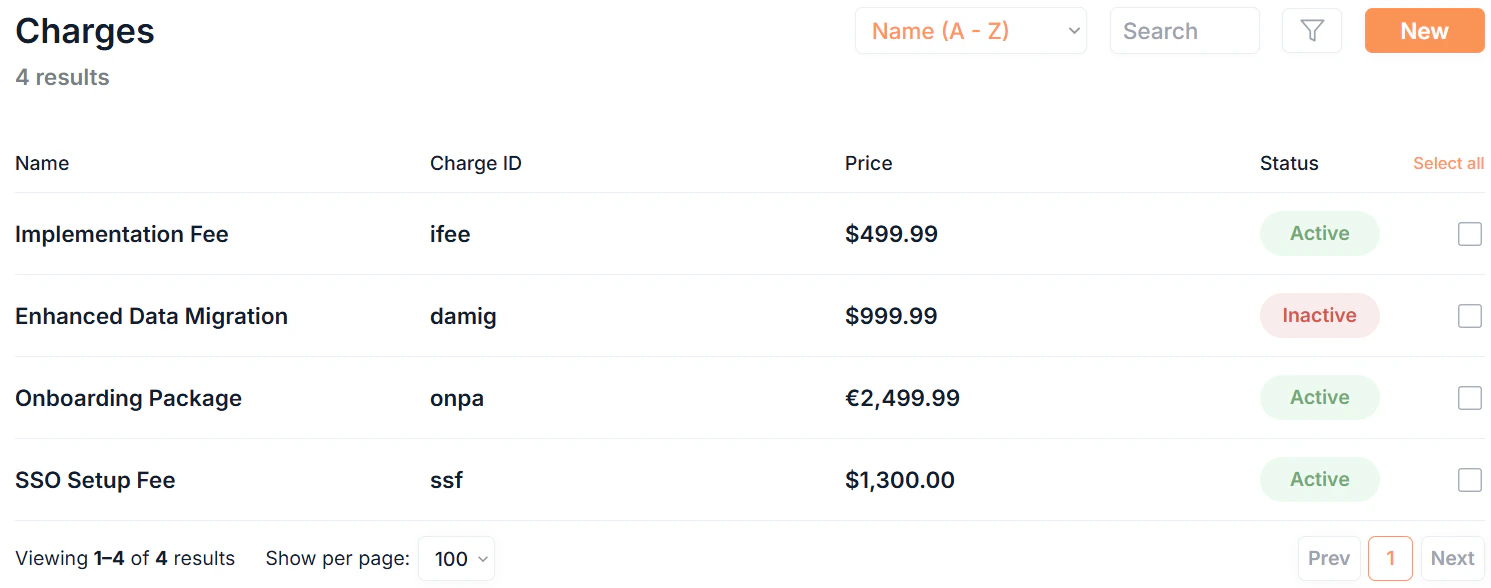
The charges list
Click Charges in the sidebar to see all charges in your organisation.Filtering and searching
- Search: free text search across all charge fields
- Sort: order by Name or Date Created
- Filter: filter by Status or Category
What each row shows
Each charge row displays:
Click any Name to open the charge’s details page.
Creating a charge
Click New in the top right to open the new charge form. Charge creation is a two-step process.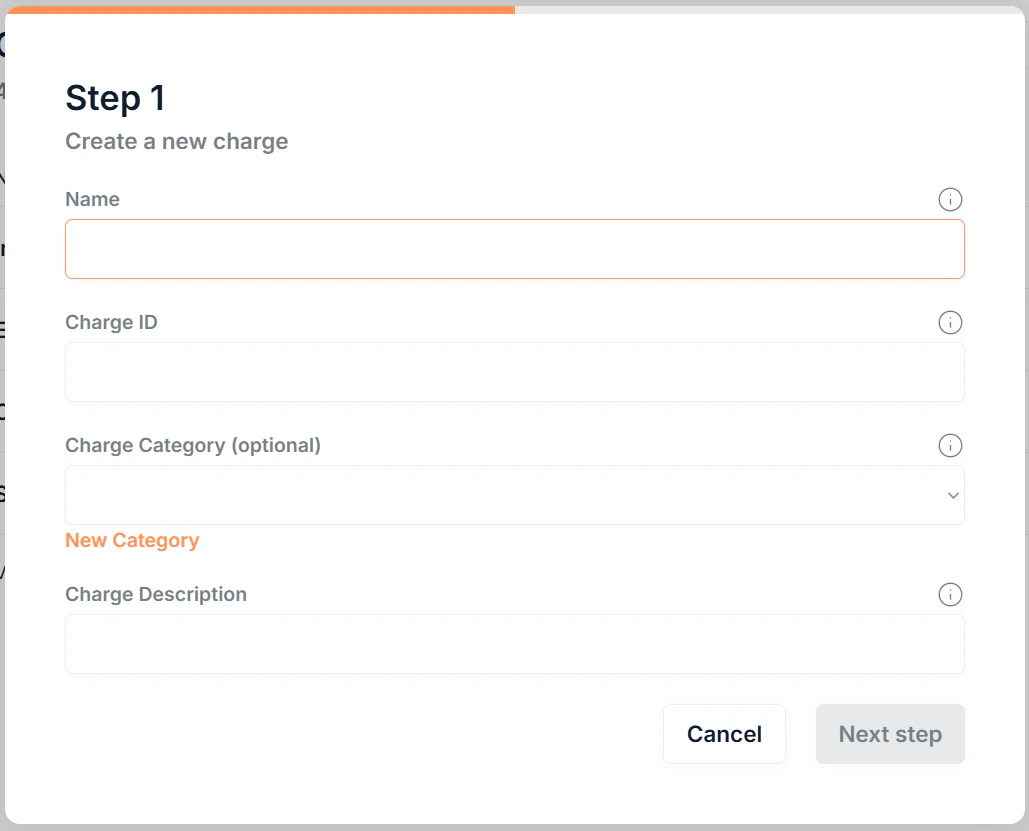
1
Charge details
Click Next step to continue.
2
Billing
Click Save to create the charge.
Charge details
Click any charge’s Name to open its details page. The details page is split into two sections: Charge details: shows the name, charge ID, charge category, currency, description, and status. Fee details: shows the price, price override setting, and billing frequency (shown as one-time).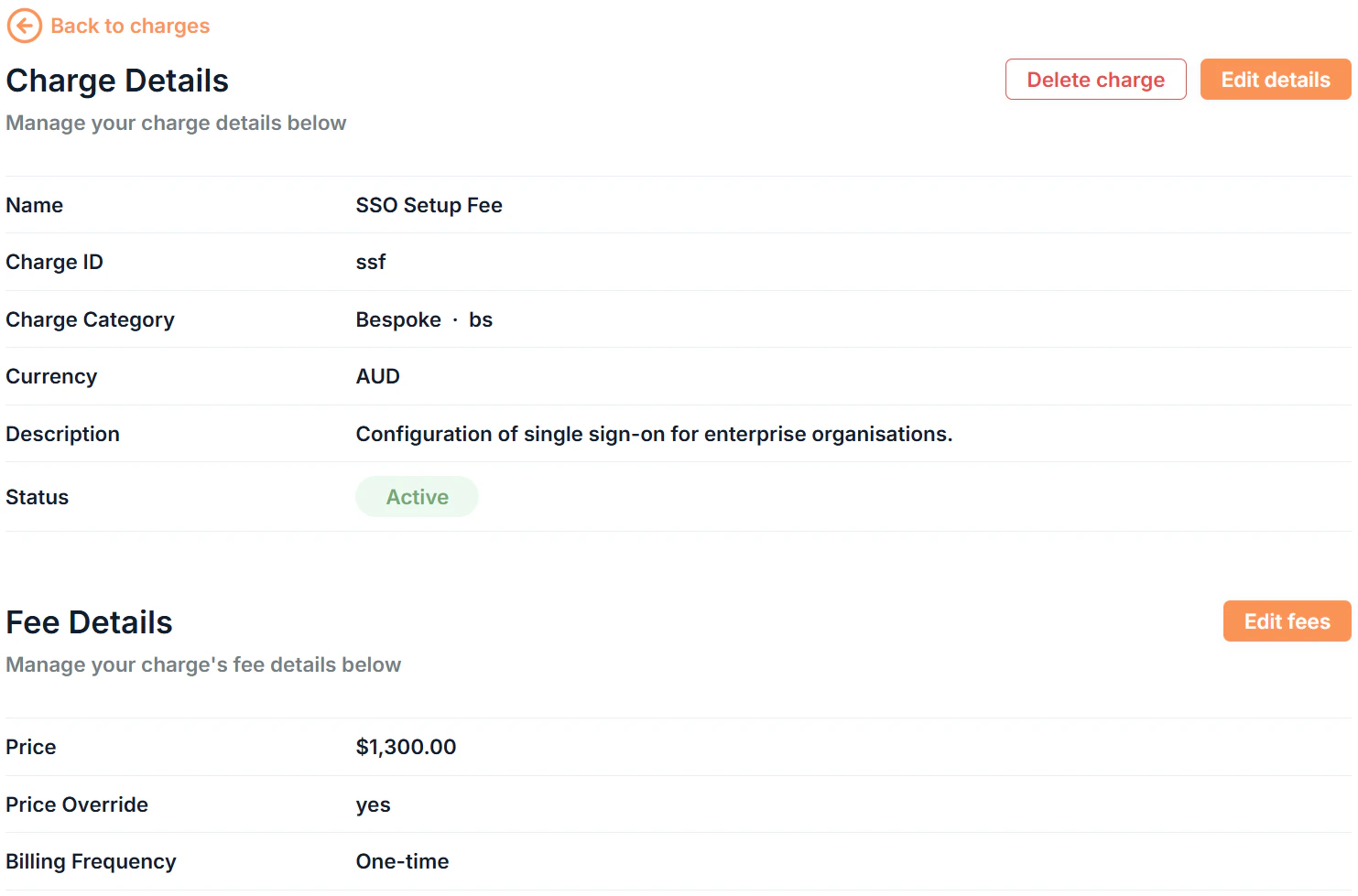
Charge statuses
Set a charge to Inactive to retire it without deleting it. Unlike plans and add-ons, there are no restrictions on when you can update the status.
Price Override
The Price Override setting controls whether the charge price can be edited when it is added to a subscription.Editing a charge
Charges have two separate edit forms depending on what you need to change.Editing charge details
Click Edit details on the charge details page to update:- Name
- Charge ID
- Charge Category
- Charge Description
- Status
- Currency
Editing fee details
Click Edit fees to update the pricing configuration:- Price
- Price Override
Adding charges to subscriptions
Charges can be added when creating a subscription or updating an existing one. Open Advanced Settings on the subscription form and select charges from the Charges section.Only charges in the same currency as the subscription are available to select.
By default, any subscription discount does not apply to charges. When adding a charge, click to apply the subscription discount percentage to it. The default selected means no discount is applied. If the charge has Price Override enabled, the discount applies to the overridden price entered on the subscription, not the original saved price.
Removing a charge from an invoice
To remove a charge that has already been added to an invoice:- Go to Invoices or open the Invoices section on the relevant subscription’s details page.
- Expand the invoice by clicking .
- Find the charge line item and click to show available actions.
- Click Remove charge to remove the charge from the invoice (requires confirmation).
Bulk actions
Select multiple charges in the list by clicking the of each charge to:- Bulk Edit: update the name, category, description, or status across multiple charges at once
- Bulk Delete: permanently remove multiple charges (requires confirmation)
When bulk editing, leave a field blank to leave that value unchanged for the selected charges.