

This page covers how to manage add-ons in the app. For a conceptual explanation of how add-ons relate to subscriptions and billing, see How Saasybill works.
Add-ons are recurring and billed at every renewal. For one-time fees such as setup or onboarding costs, use Charges instead.
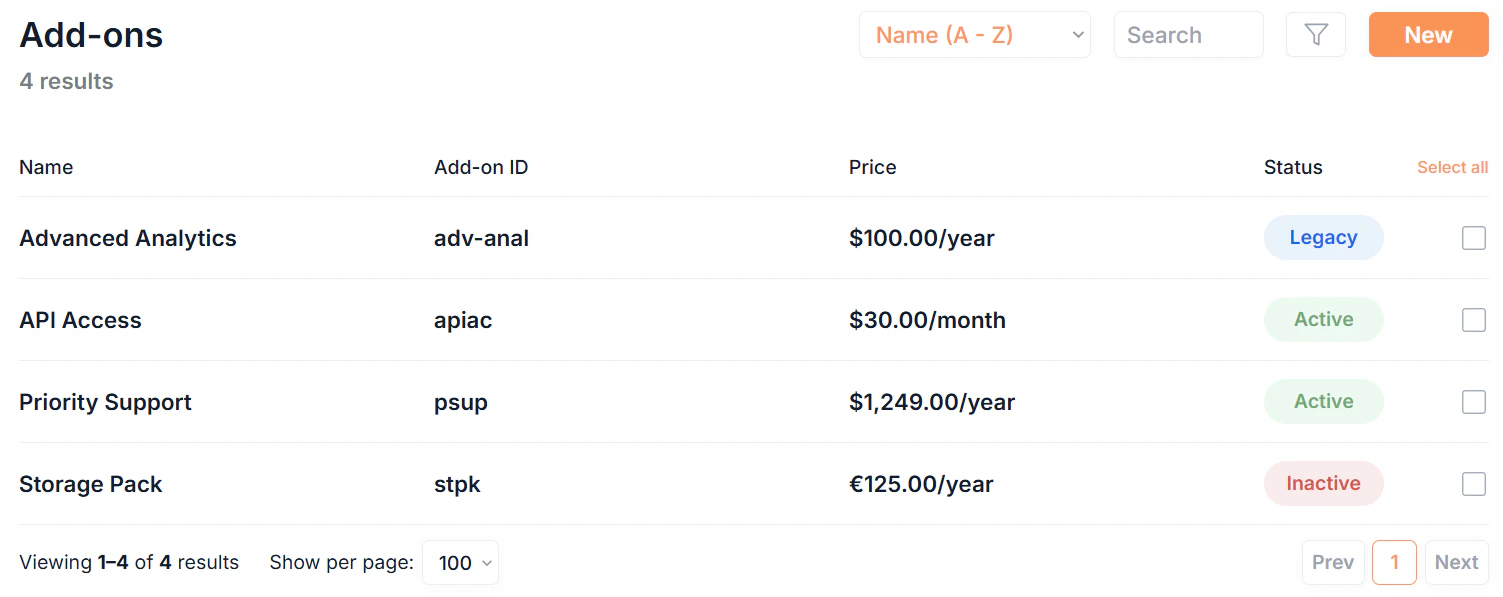
The add-ons list
Click Add-ons in the sidebar to see all add-ons in your organisation.Filtering and searching
- Search: free text search across all add-on fields
- Sort: order by Name or Date Created
- Filter: filter by Status or Category
What each row shows
Each add-on row displays:
Click any Name to open the add-on’s details page.
Creating an add-on
Click New in the top right to open the new add-on form. Add-on creation is a two-step process.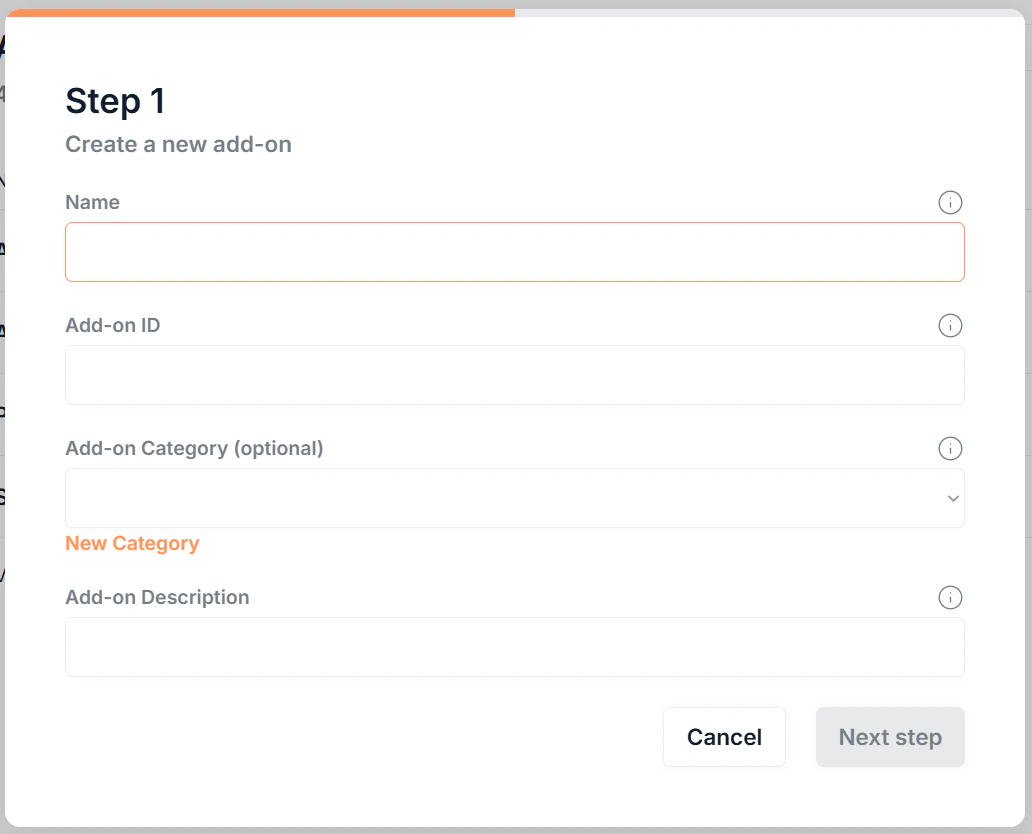
1
Basic details
Click Next step to continue.
2
Billing
Add-on pricing is always a fixed amount per billing cycle. Unlike plans, add-ons do not support tiered, volume, or per-unit pricing models.
Add-on details
Click any add-on’s Name to open its details page. The details page is split into two sections: Add-on details: shows the name, add-on ID, add-on category, currency, description, and status. Fee details: shows the price and billing frequency.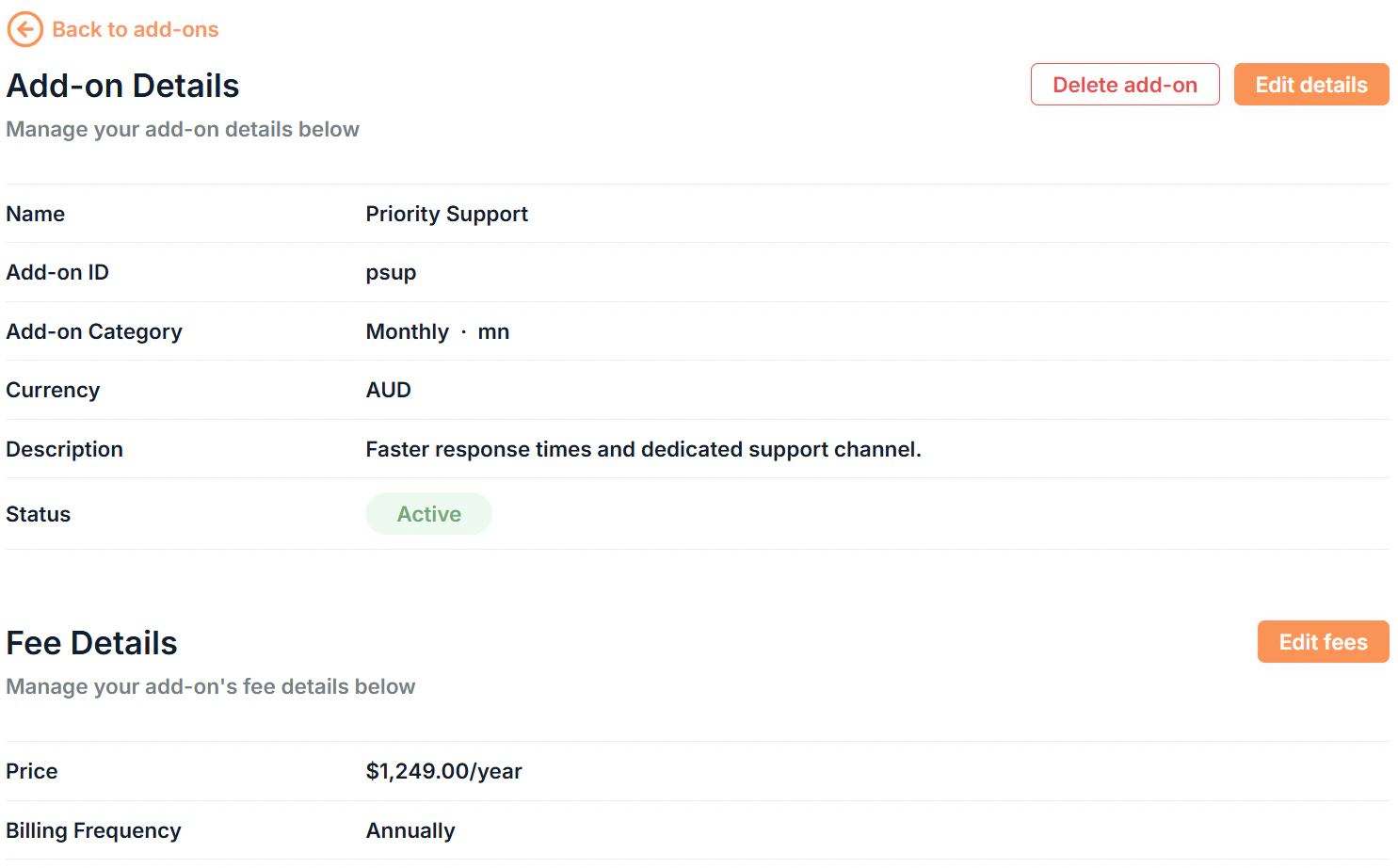
Add-on statuses
Set an add-on to Legacy when you want to keep existing subscriptions running on it but stop new ones being created. Set it to Inactive to retire it without deleting it. Add-ons already attached to active subscriptions can only be set to Active or Legacy.
Editing an add-on
Like plans, add-ons have two separate edit forms depending on what you need to change.Editing add-on details
Click Edit details on the add-on details page to update:- Name
- Add-on ID
- Add-on Category
- Add-on Description
- Status
- Currency
Editing fee details
Click Edit fees to update the pricing configuration:- Price
- Billing Frequency
Attaching add-ons to subscriptions
Add-ons are attached when creating a subscription. Open Advanced Settings on the subscription form and select charges from the Add-ons section.By default, any subscription discount does not apply to add-ons. When adding an add-on, click to apply the subscription discount percentage to it. The default selected means no discount is applied.
Bulk actions
Select multiple add-ons in the list by clicking the of each add-on to:- Bulk Edit: update the name, category, description, or status across multiple add-ons at once
- Bulk Delete: permanently remove multiple add-ons (requires confirmation)
When bulk editing, leave a field blank to leave that value unchanged for the selected add-ons.